

Parent guide
AI Cirqle runs the whole family from one parent account. Children never sign up or sign in on their own. You switch from your screen into your child's. This guide walks through sign-up, following a project, reading the results and approving the next project.
Screens as of
1The red numbers on each picture match the numbered notes below it.
Getting started
Create a family account
At parent.aicirqle.org/register you enter your details and your child's in one form. Use 'Add child' for more children.
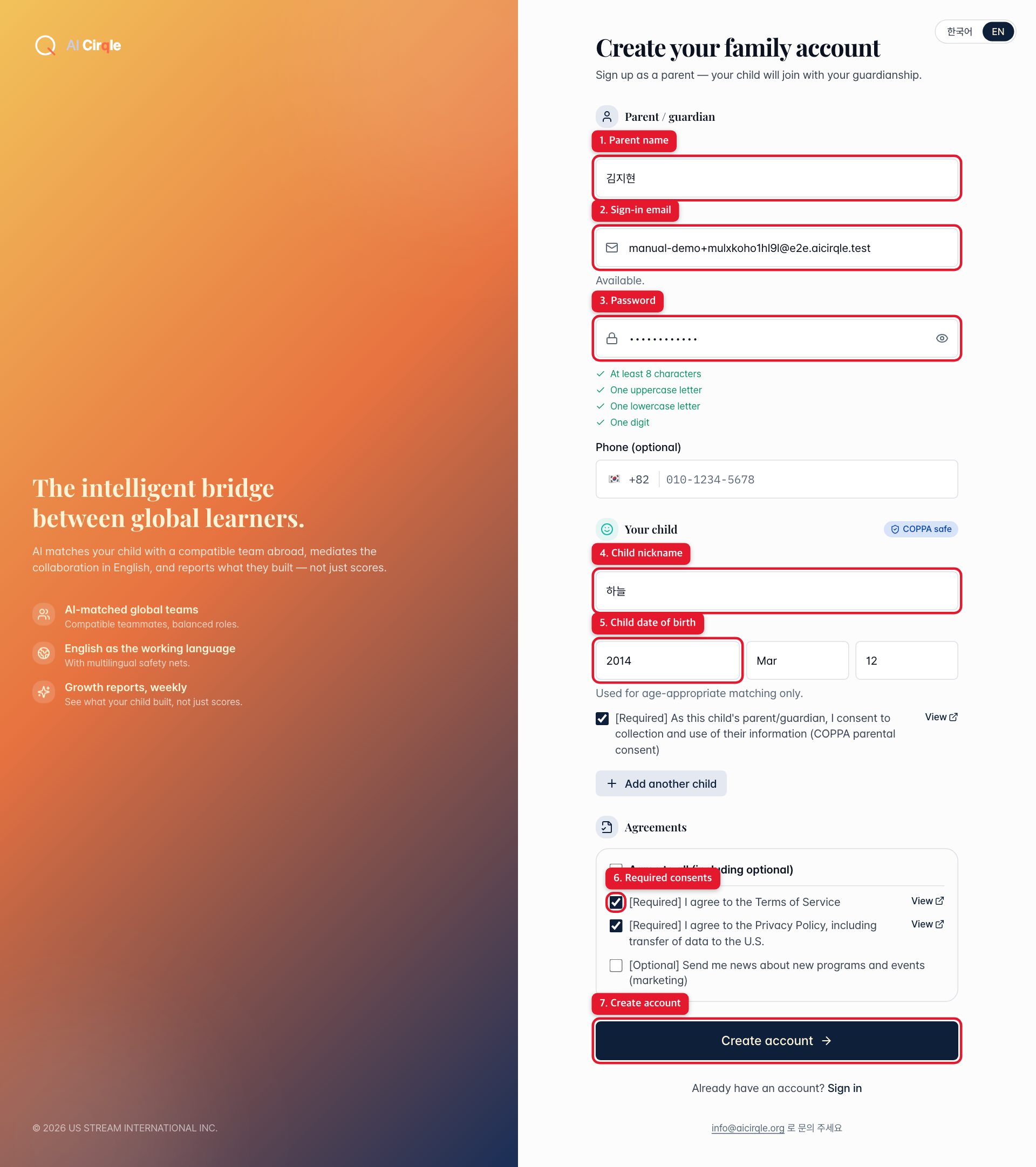
- 1. Your name as the parent or guardian.
- 2. The email you'll sign in with. You're told right away if it's already registered.
- 3. At least 8 characters with an uppercase letter, a lowercase letter and a digit. All four checks below turn green when it's valid.
- 4. The nickname your child wants to go by. Teammates see this name, so we suggest not using a real name.
- 5. Your child's date of birth. It's only used to match age-appropriate projects and teams.
- 6. Terms, privacy and the guardian consent for your child are required. News emails are optional. 'View' opens the full text in a new tab.
- 7. Takes you straight to the parent dashboard and sends a verification email.
Good to know
- Clicking the link in the verification email unlocks billing and subscriptions. If you can't find it, check spam or press 'Resend verification email' at the top of the dashboard.
Sign in and reset your password
Parents sign in at parent.aicirqle.org. If you forget your password, you can get a reset link by email.
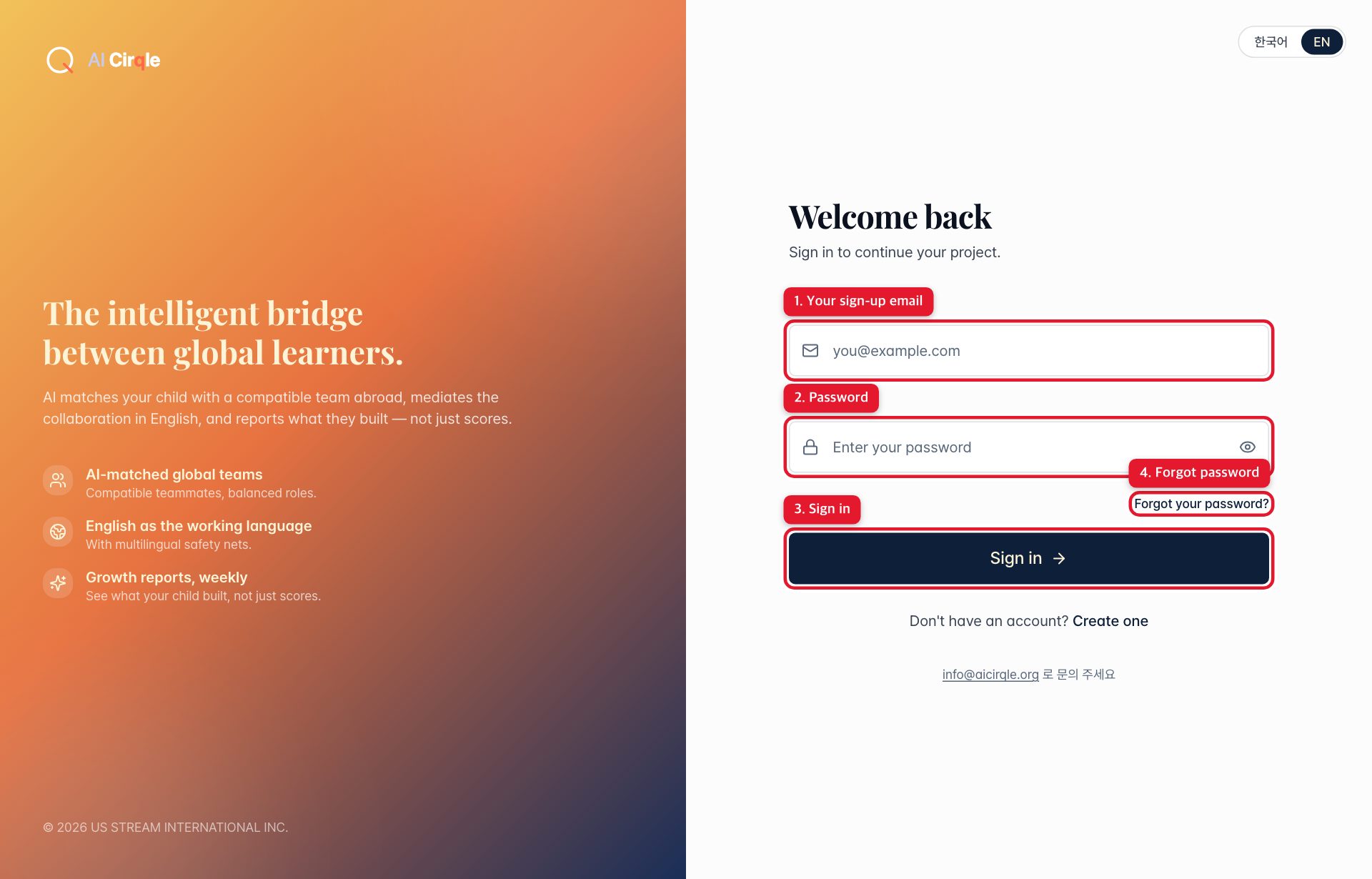
- 1. The email you signed up with.
- 2. Your password.
- 3. Signs you in and opens the parent dashboard.
- 4. Use this if you can't remember your password.
- 5. No account yet? Go to sign-up.
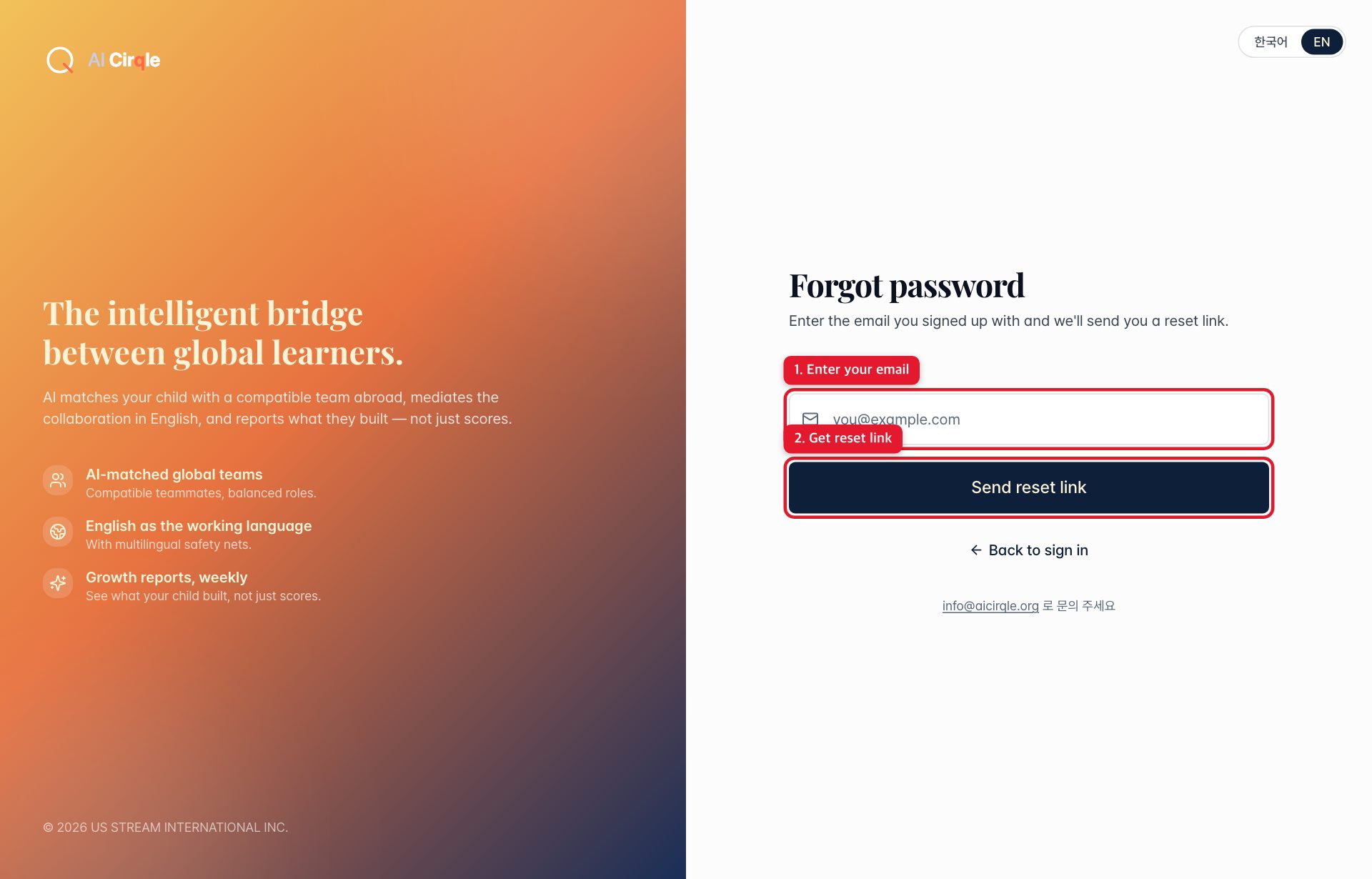
- 1. Enter the email you signed up with.
- 2. Emails you a reset link. It works for 30 minutes, and changing the password signs out every other device.
Dashboard and your child's screen
Parent dashboard
The first screen after you sign in. It tells you in one sentence where your child is and shows a button when something needs you.
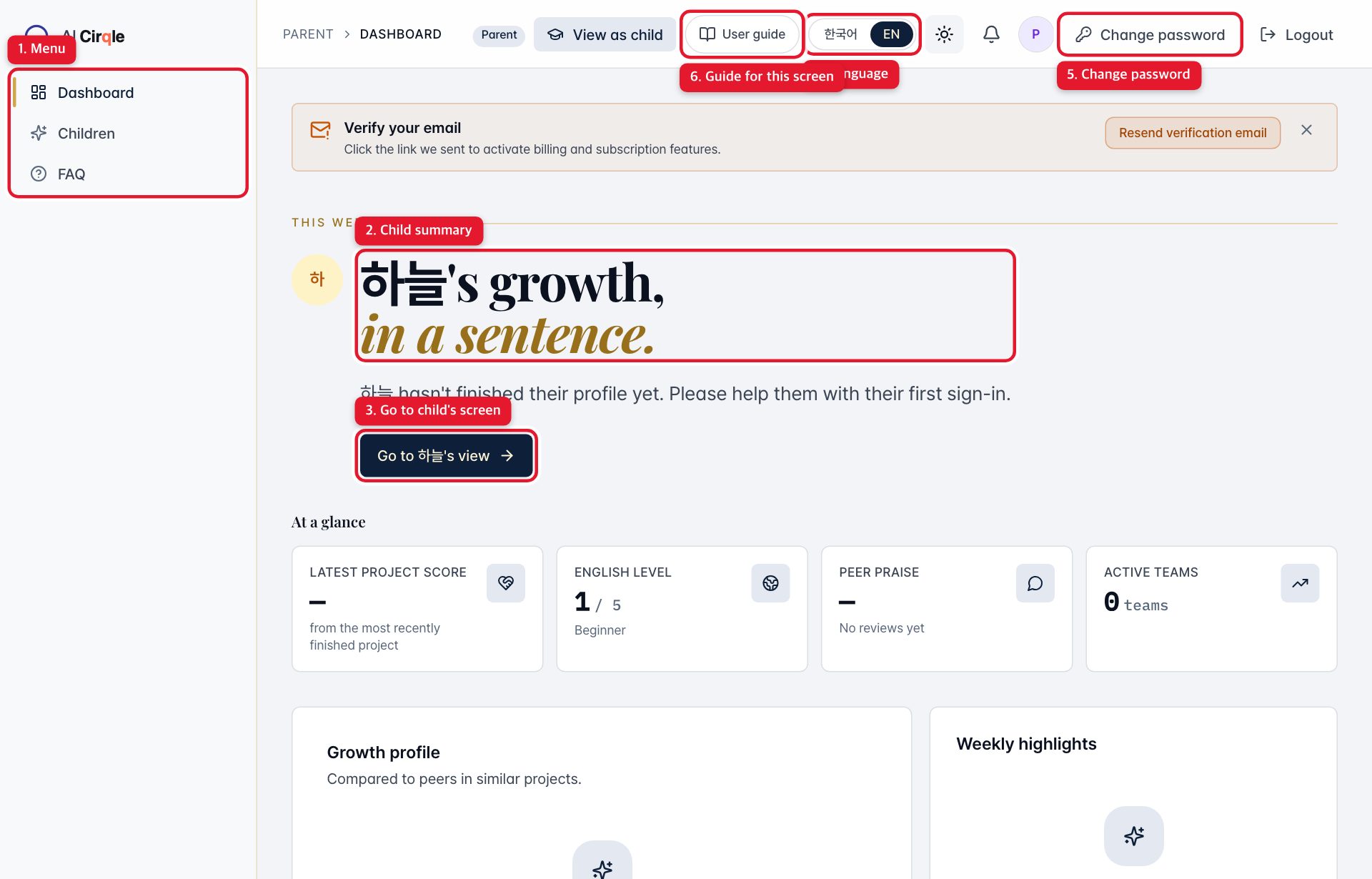
- 1. Left menu: dashboard, your children and the FAQ.
- 2. Your child's week in one sentence. Right after sign-up it says the profile isn't finished yet.
- 3. Switches to your child's screen. The first time, sit with your child for onboarding (5 questions).
- 4. Switches between Korean and English. Every screen, and this guide, follows.
- 5. Change your password.
- 6. Opens the guide for the screen you're on in a new window. This guide opens from here too.
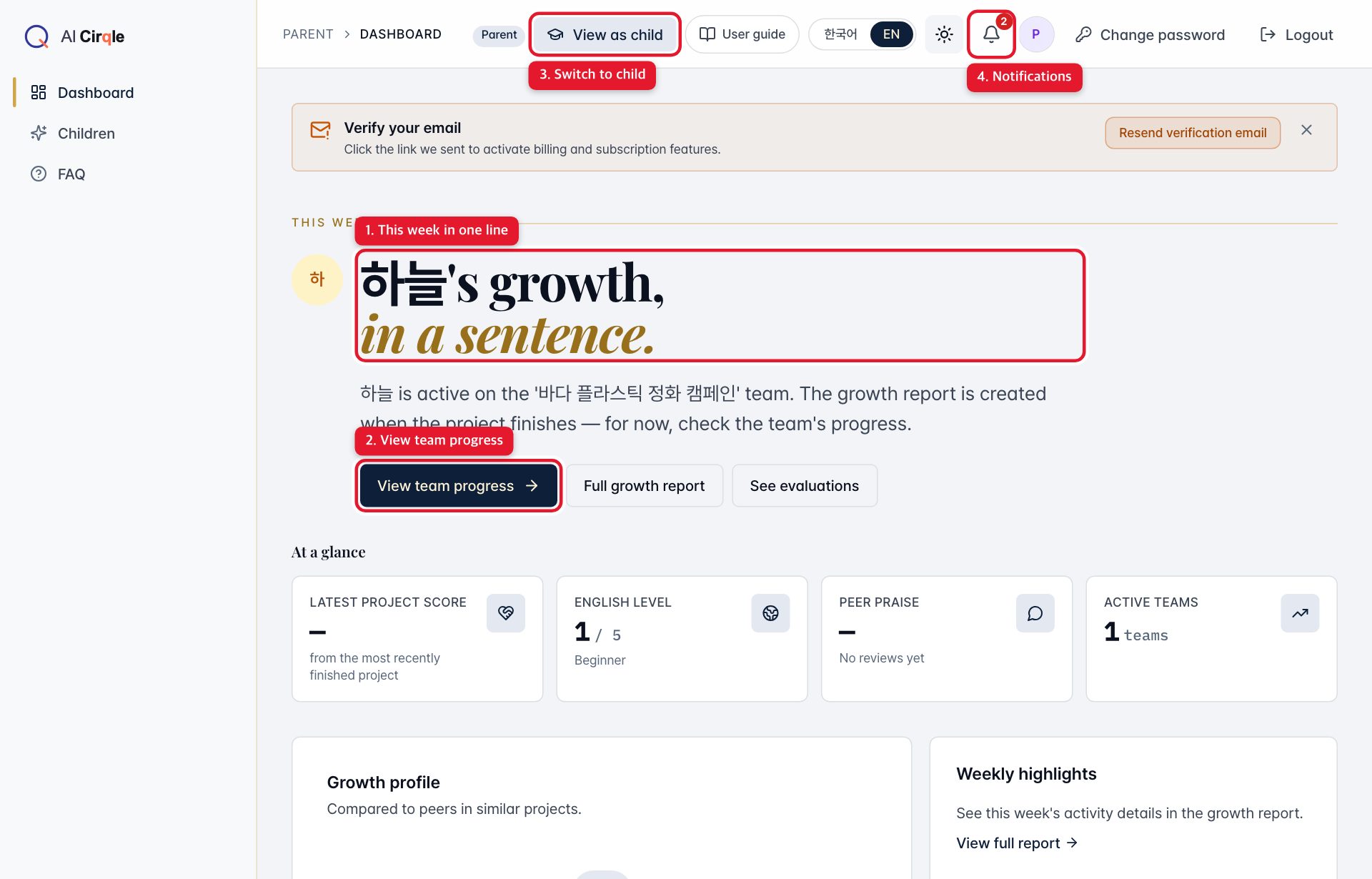
- 1. A one-line summary of what your child did this week.
- 2. Open the team's weekly goal, teammates and recent activity.
- 3. This header button also switches to your child's screen at any time.
- 4. A number appears on the bell when there's news, such as a new team or a finished project.
Parent screen lock
After your child's screen has been used, coming back to the parent screen asks for your password again. It keeps children from wandering into your screen on their own.
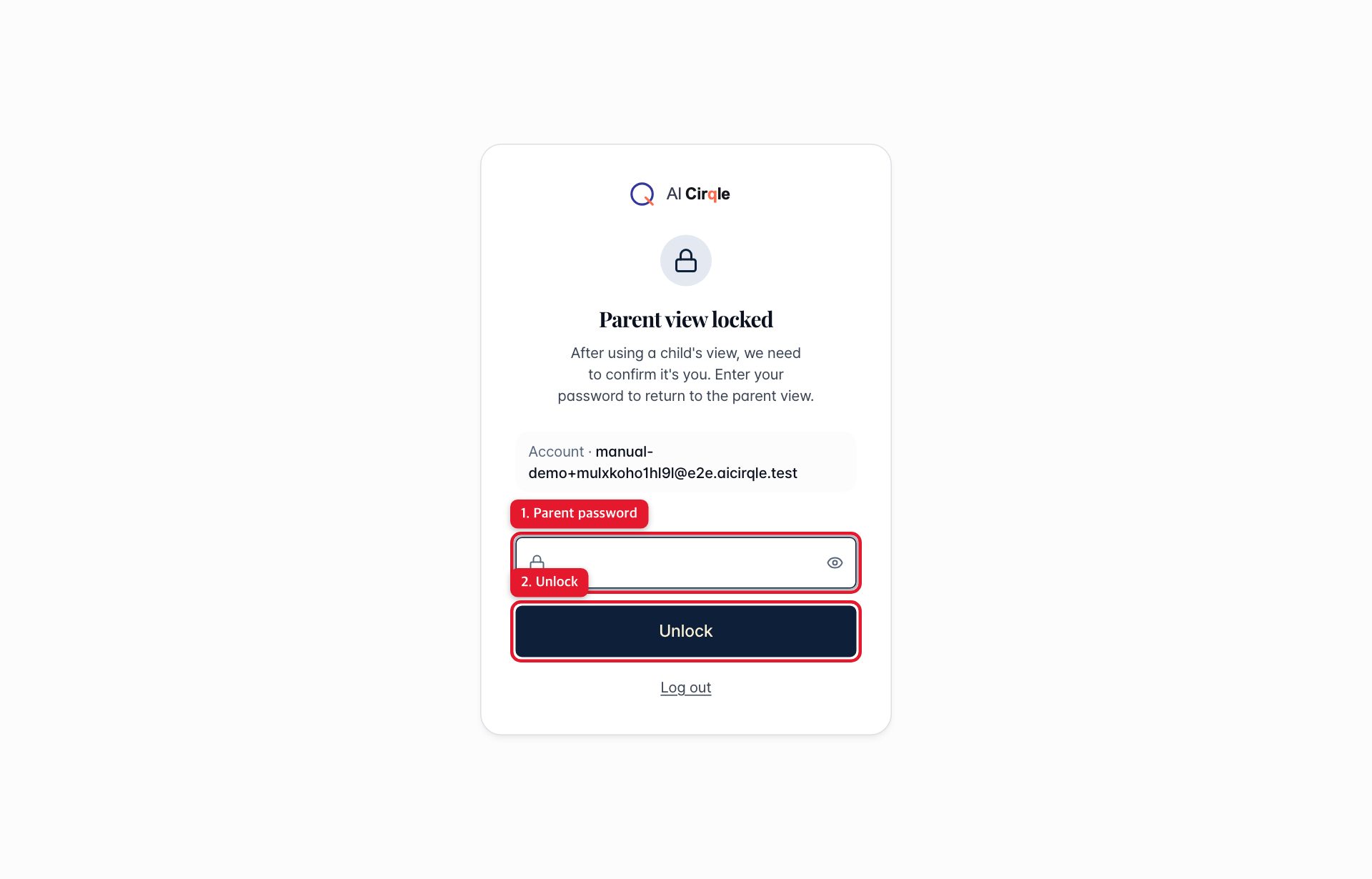
- 1. Enter your parent password.
- 2. Returns you to the parent screen you were on.
Good to know
- Parent and child screens can stay open side by side on one computer. They live on different addresses (parent. and student.), so the sign-ins never mix.
Your children
My children
Each registered child appears as a card. Open a card for that child's growth report and evaluations.
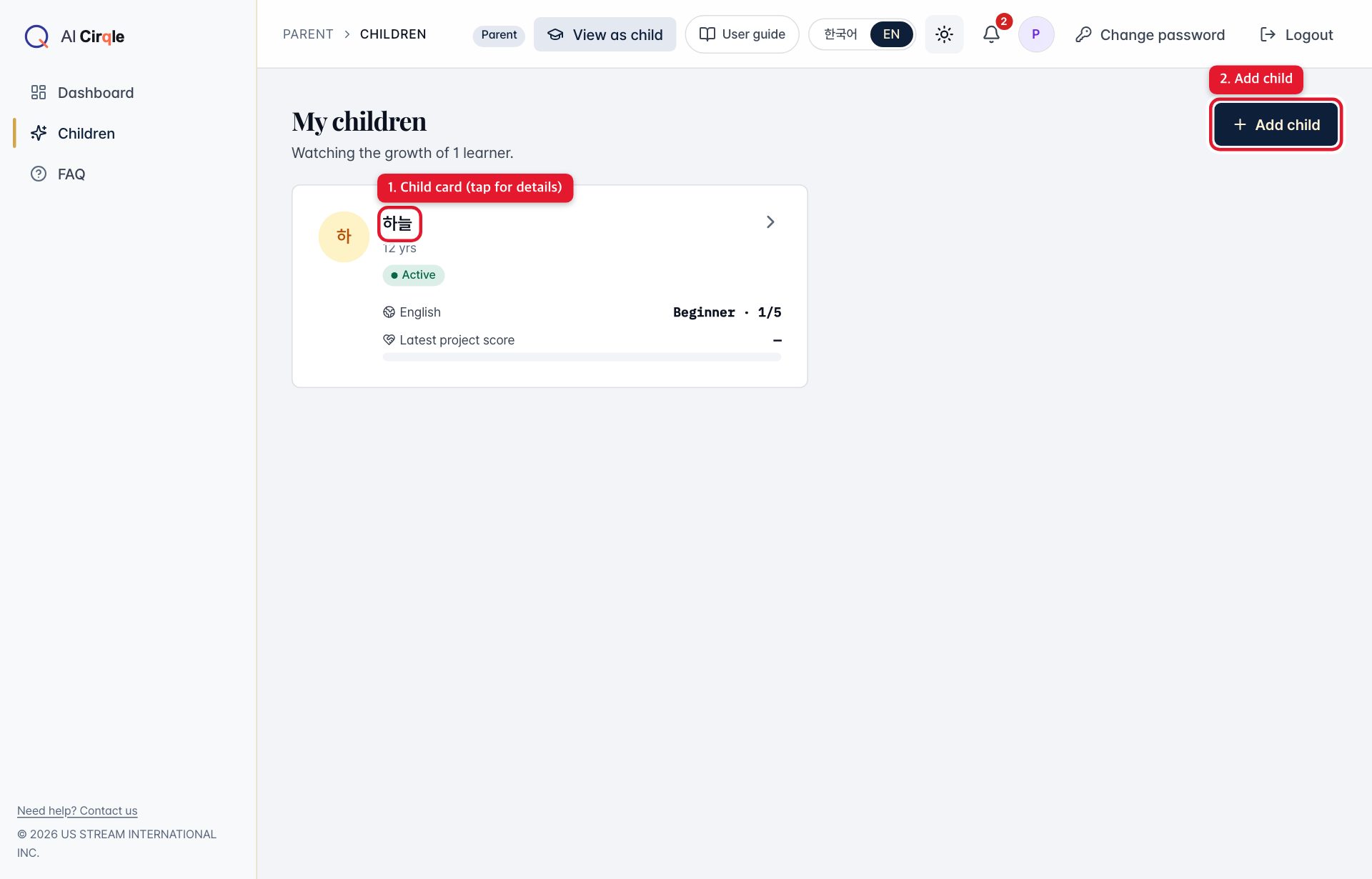
- 1. A child card with English level and latest project score. Tap it for details.
- 2. Register another child.
Add a child
All you need is a nickname and date of birth. Onboarding happens afterwards in the child's screen.
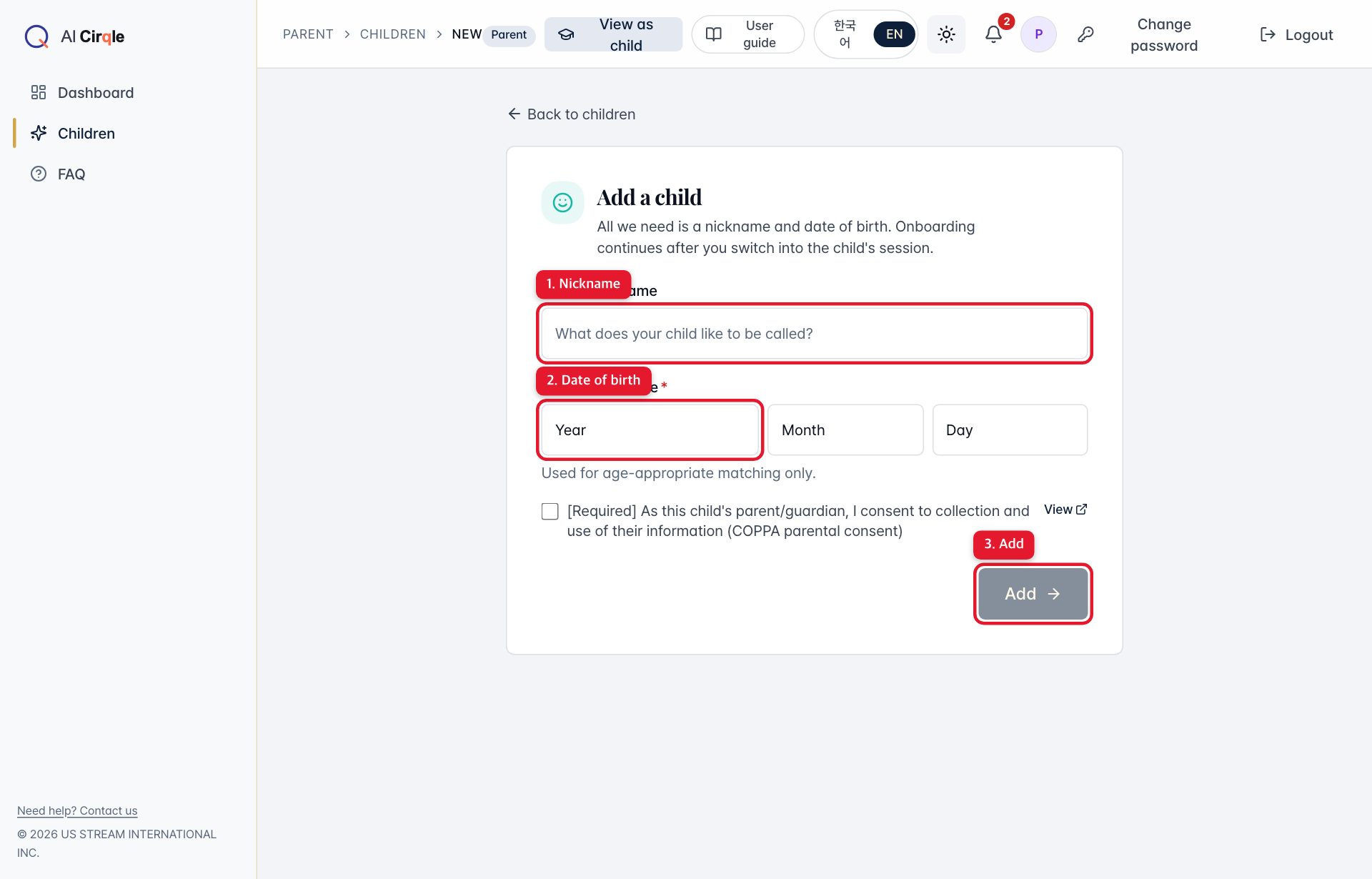
- 1. The nickname teammates will see.
- 2. Date of birth, used only for age-appropriate matching.
- 3. Adds the child and returns to the list.
Child details: growth report
When a project ends, a growth report is created. It charts six areas: participation, English, collaboration, output, peer review and growth momentum. The tabs below also show evaluations, teams joined and recommended next projects.
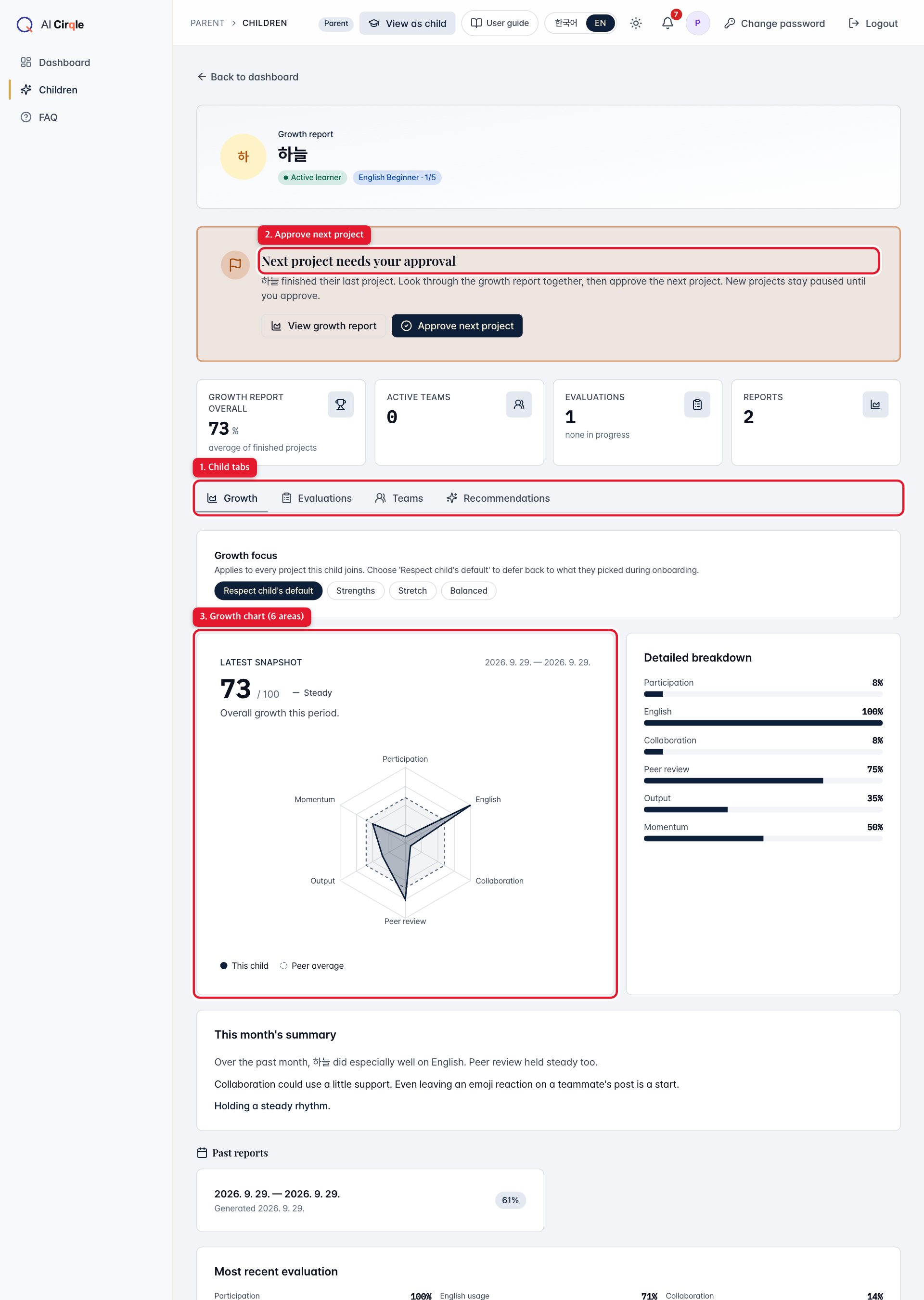
- 1. Switch between the Growth, Evaluations, Teams and Recommendations tabs.
- 2. Appears when a project ends. Review the report, then approve the next project.
- 3. The six-area chart. The further out a point, the stronger that area. It's computed from your child's own activity.
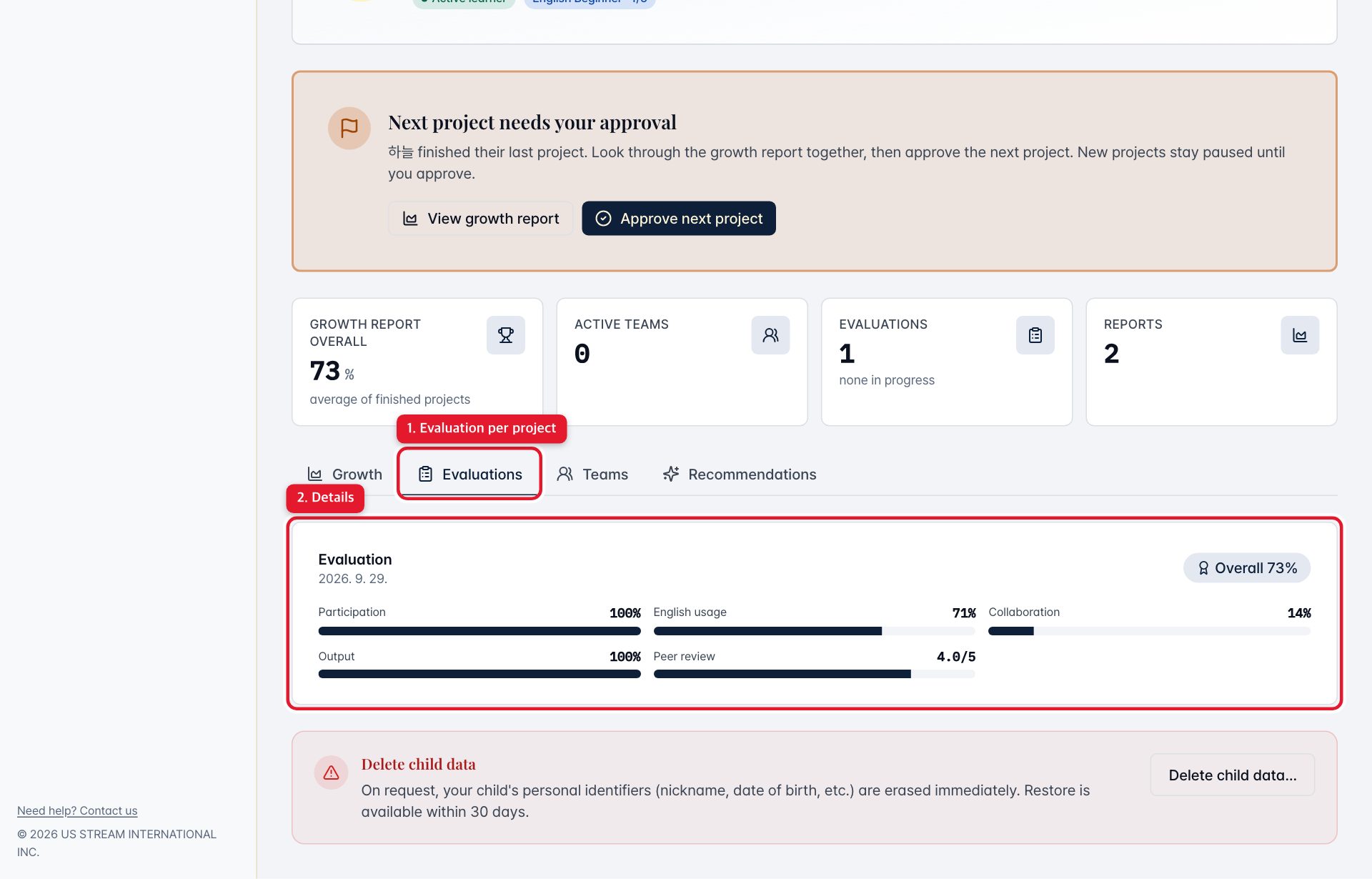
- 1. Open the Evaluations tab.
- 2. One evaluation per project. It's relative to teammates, so it can differ from the growth report numbers.
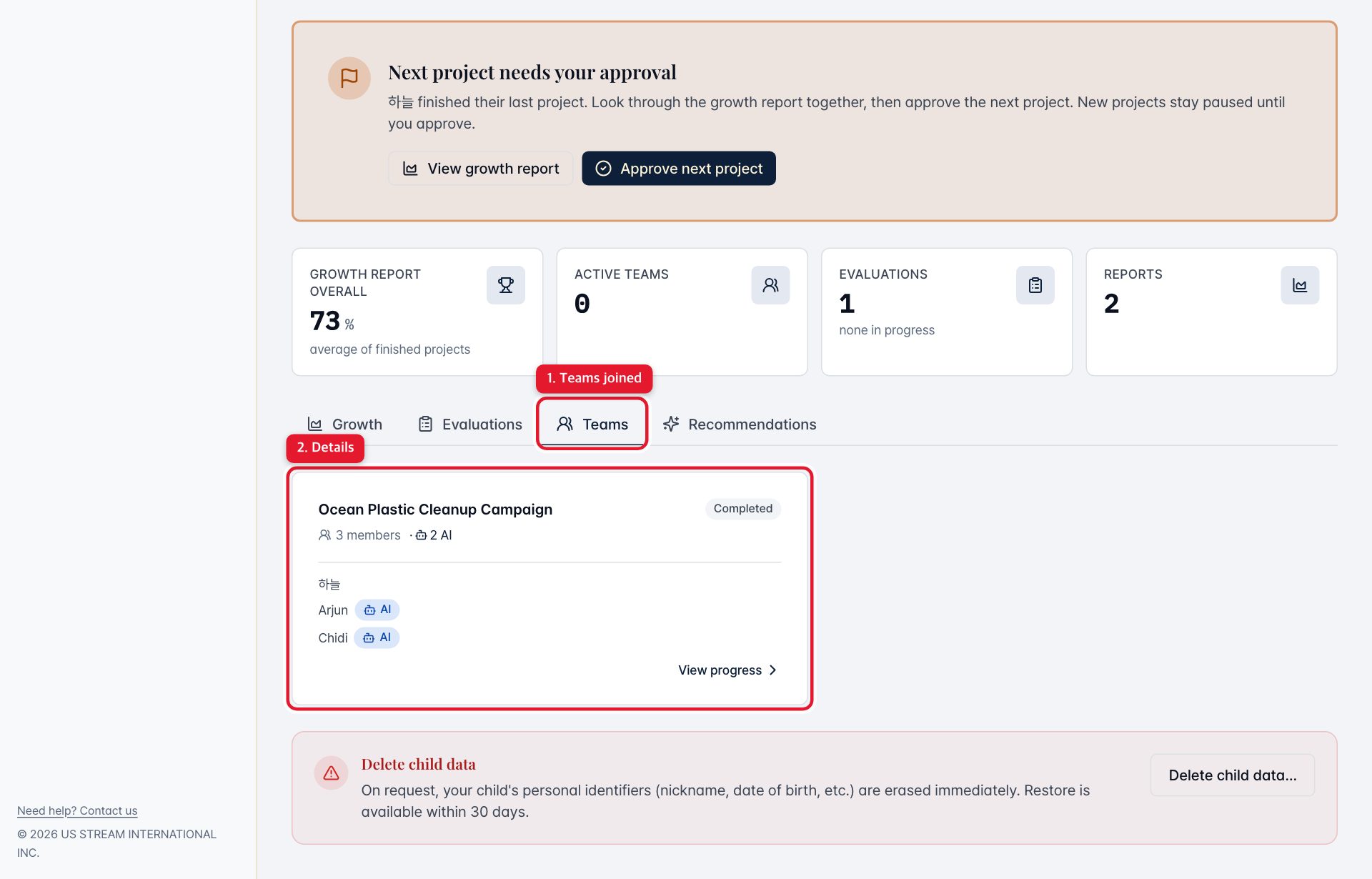
- 1. Open the Teams tab.
- 2. Teams your child has joined and their status (active or completed). Open one to see its progress.
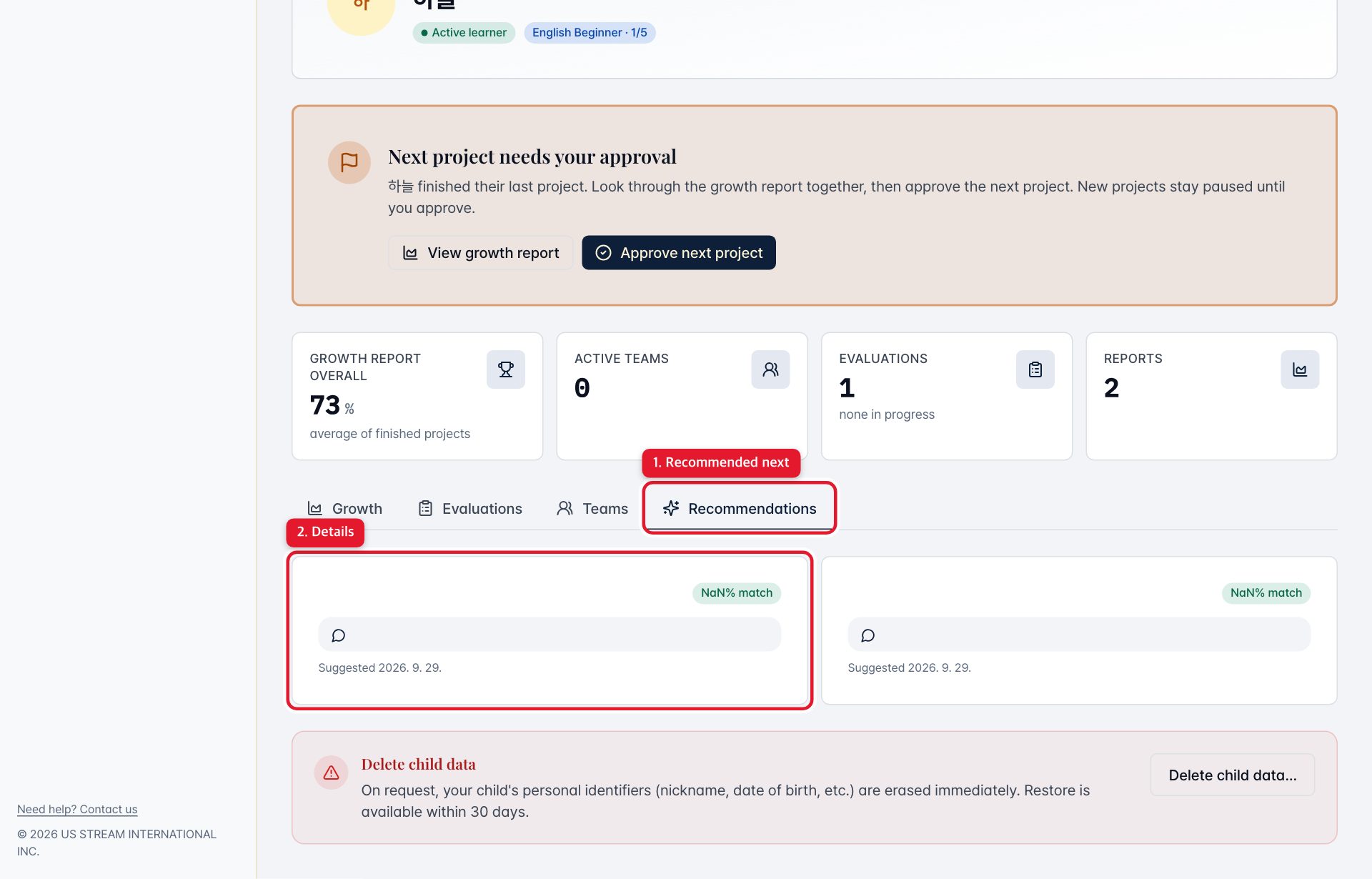
- 1. Open the Recommendations tab.
- 2. Next-project picks the AI made from your child's interests and past activity.
Approve the next project
After a project ends, your child can join a new one only once you've reviewed the results and approved. Until then your child's screen shows 'Waiting for your parent'.
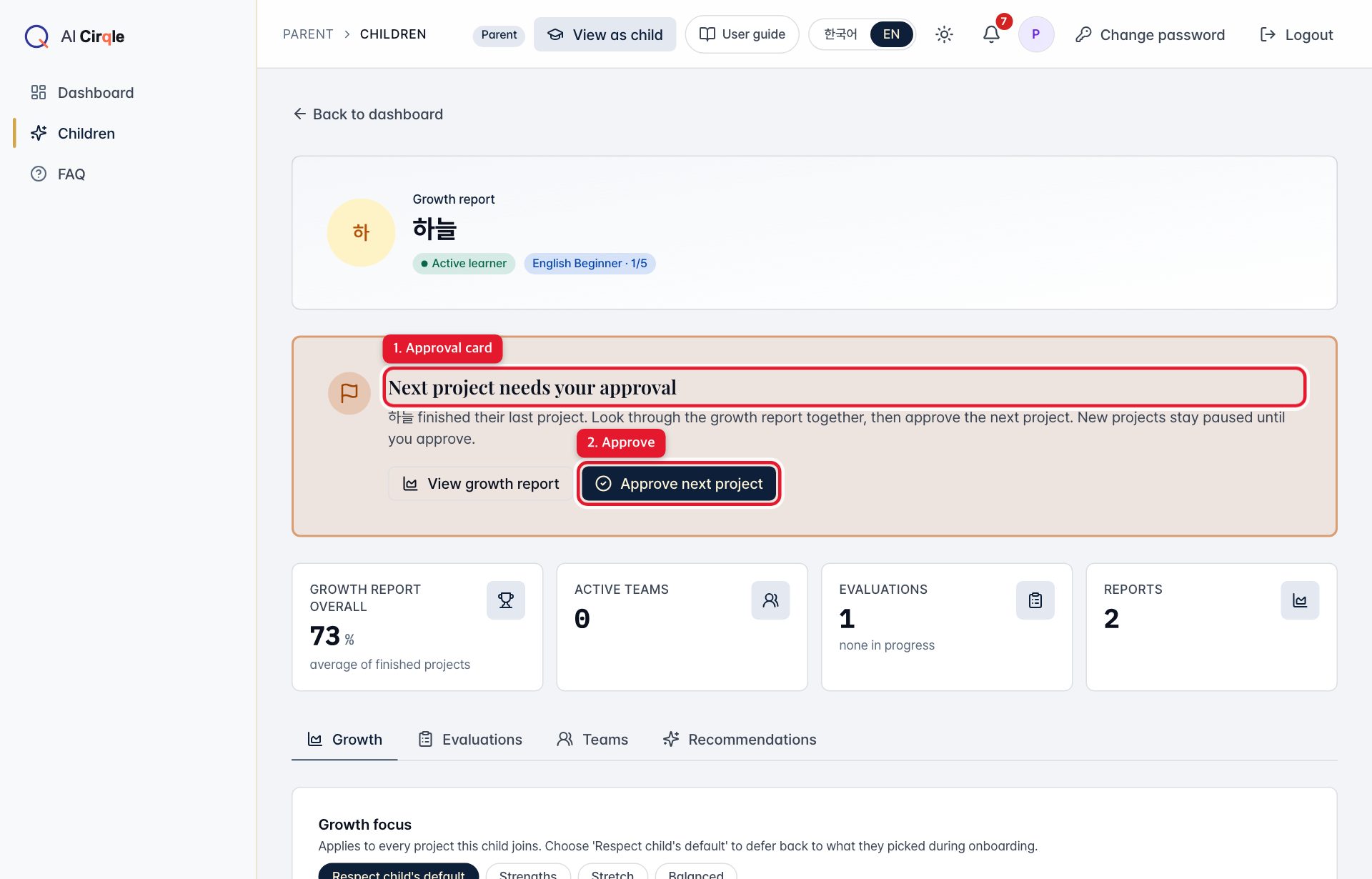
- 1. The approval card. It appears on both the dashboard and the child details screen.
- 2. Approves right away. Your child can then pick the next project.
Following a project
Team progress
Projects run for four weeks. This screen shows the weekly goal, teammates and recent activity. It's read-only.
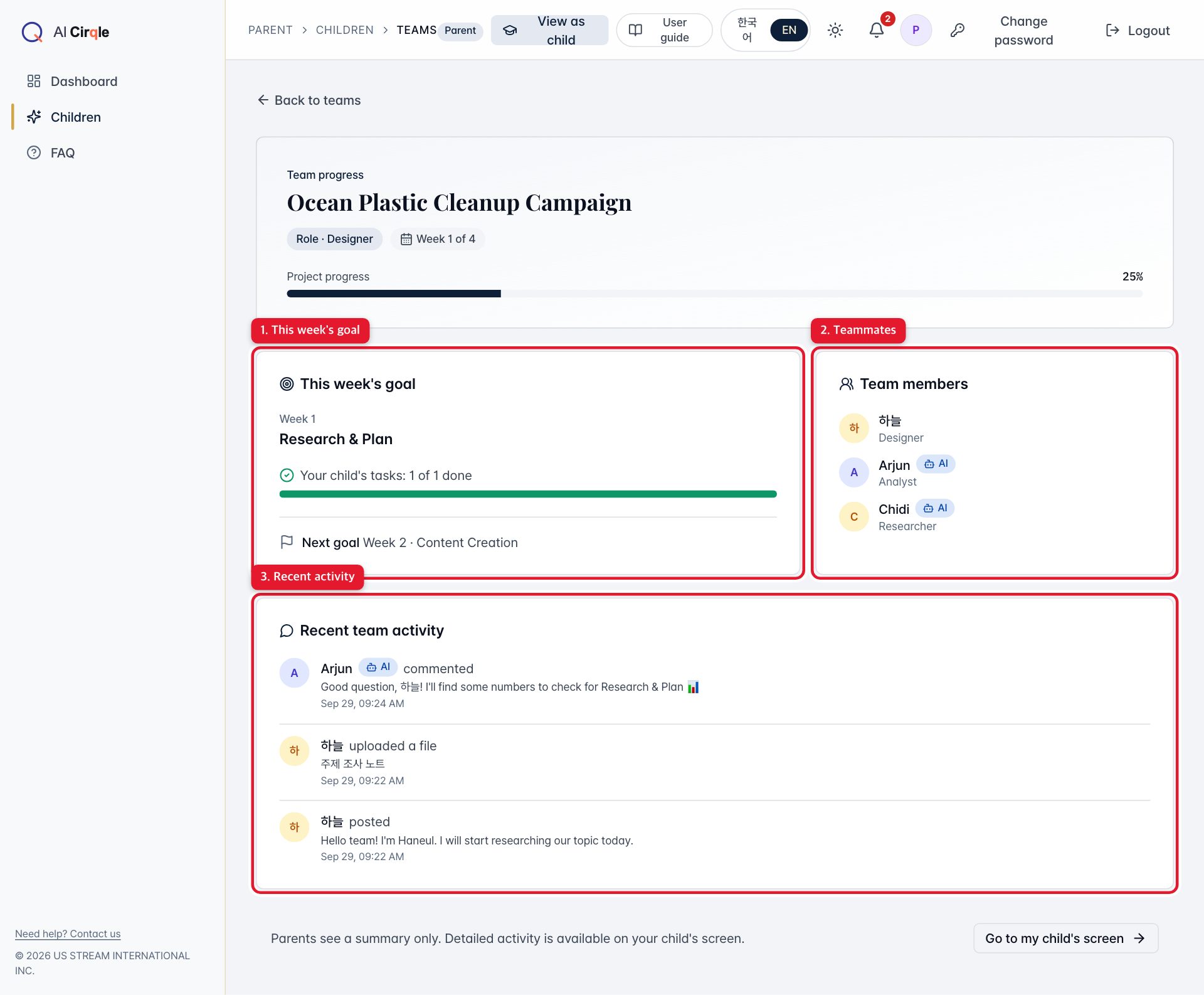
- 1. This week's goal and your child's tasks.
- 2. Teammates. Those marked 'AI' are AI teammates.
- 3. Recent posts and outputs from the team.
Good to know
- When there aren't enough students, AI teammates join. They reply to posts and leave peer reviews, and they're always labelled 'AI'.
Notifications
Important news, such as a new team or a finished project, arrives as a notification. The bell at the top shows it too.
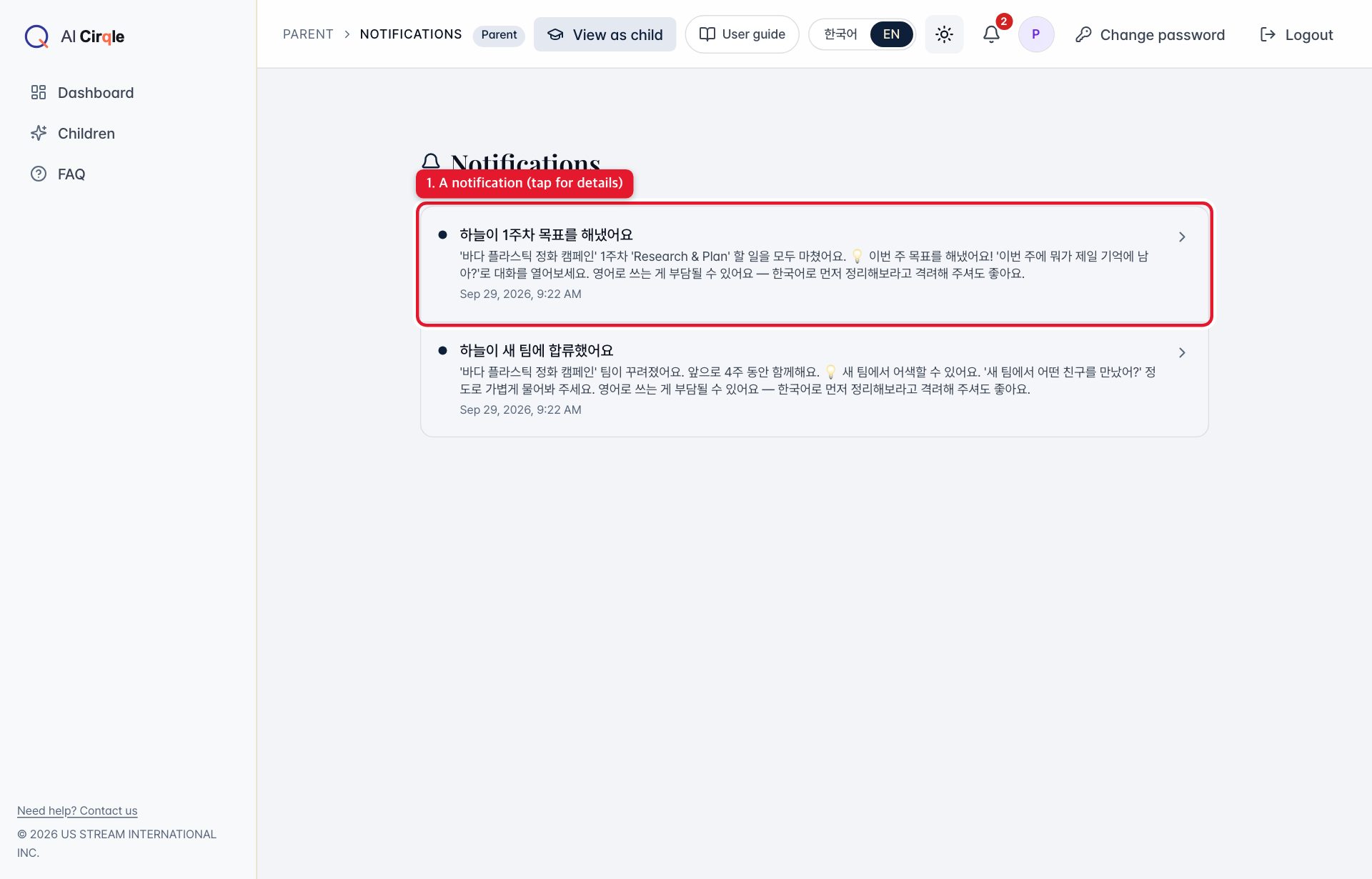
- 1. Tap a notification for details and the related screen. Each one comes with a tip for talking with your child.
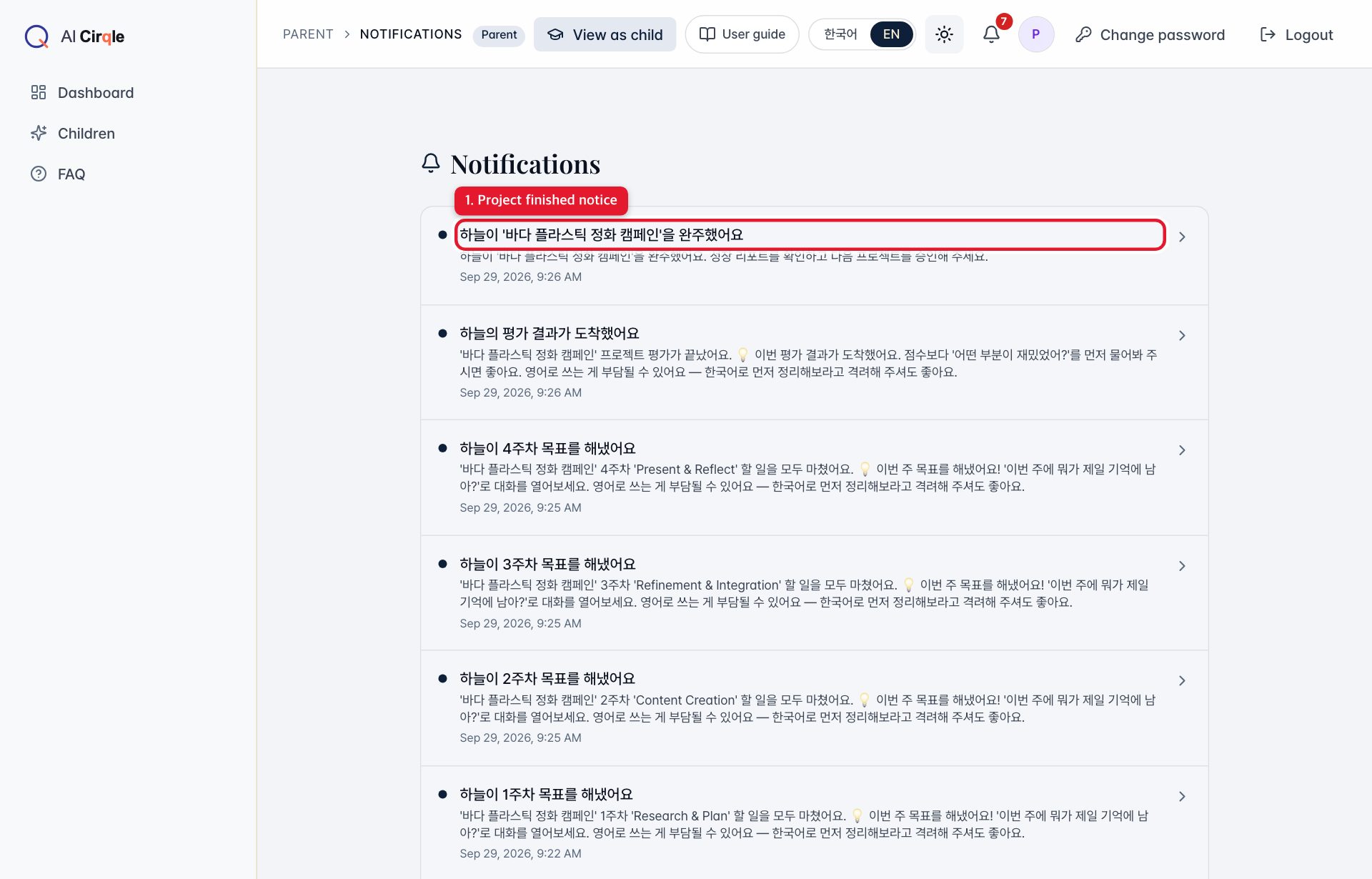
- 1. Arrives when your child finishes a project. Opens the results and approval screen.
Account and help
Change your password
Press 'Change password' at the top to open the form.
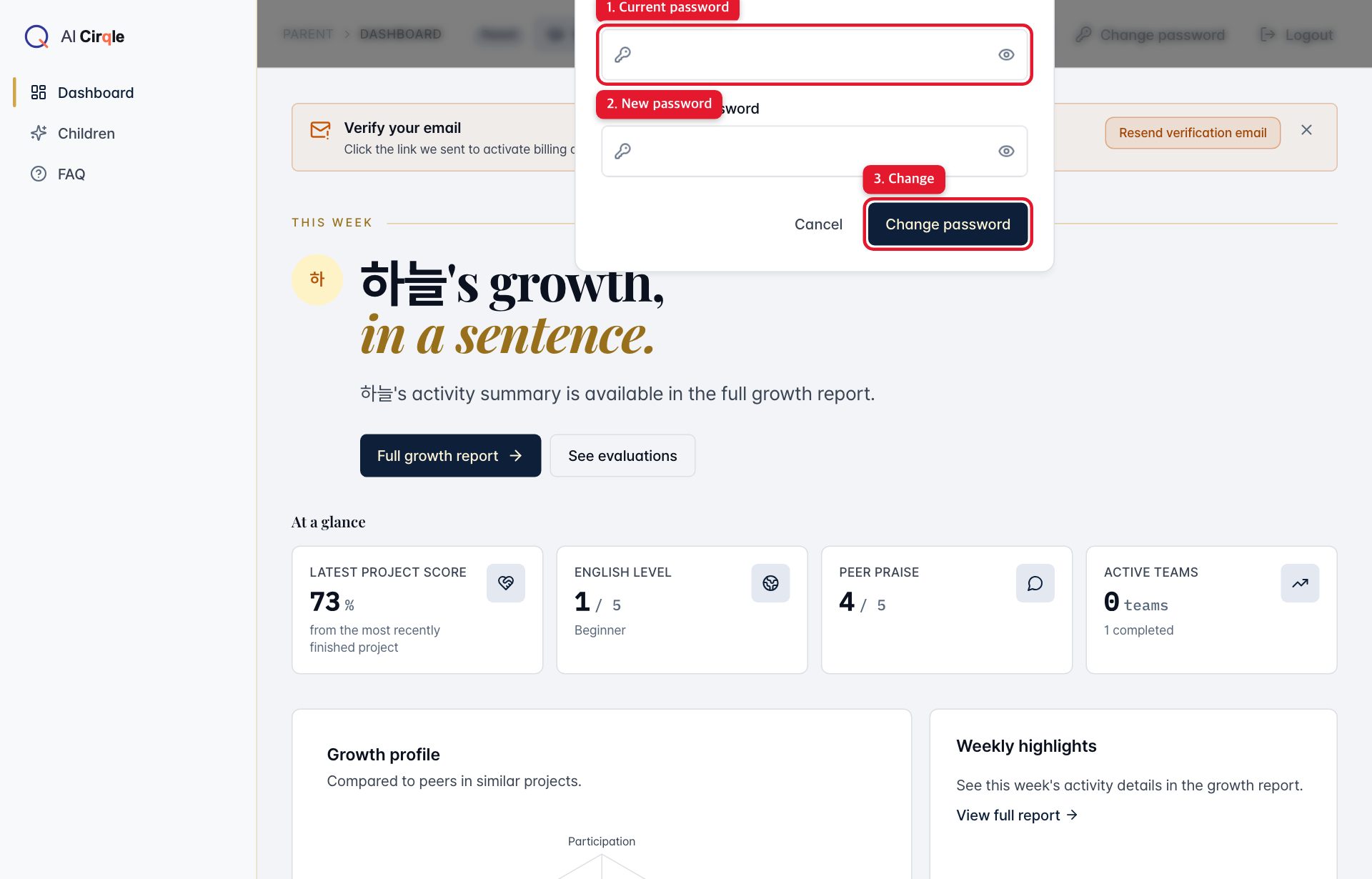
- 1. Your current password.
- 2. The new password. Same rules as sign-up: 8+ characters with upper, lower and a digit.
- 3. Saves the new password.
FAQ and contact
The FAQ in the left menu answers common parent questions. If that doesn't help, email us.
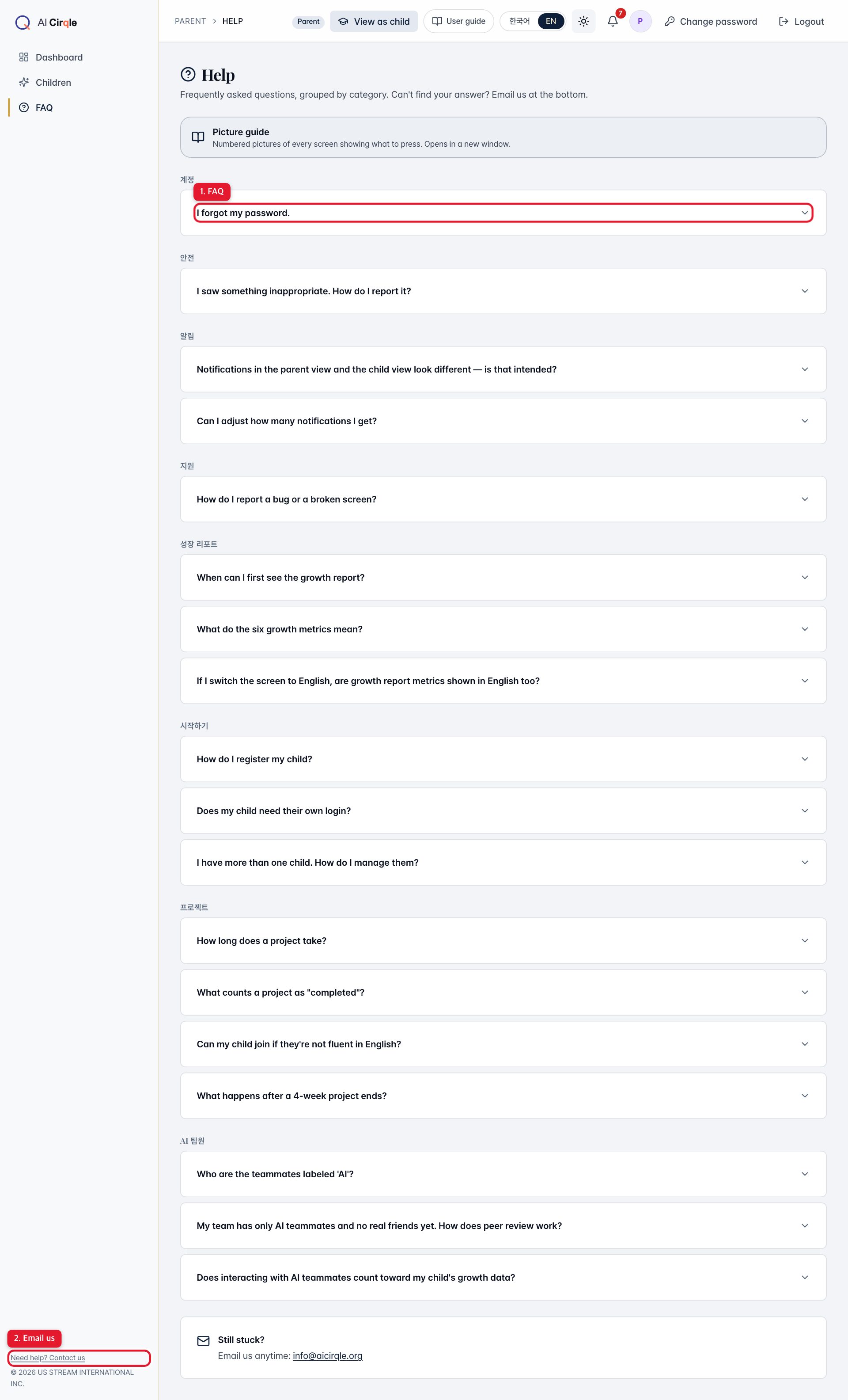
- 1. Tap a question to expand the answer.
- 2. Emails info@aicirqle.org.
Questions and answers at a glance
- How do I create an AI Cirqle family account?
- At parent.aicirqle.org/register you enter your details and your child's in one form. Use 'Add child' for more children. See it with pictures
- How do I sign in or reset a forgotten password?
- Parents sign in at parent.aicirqle.org. If you forget your password, you can get a reset link by email. See it with pictures
- What does the parent dashboard show?
- The first screen after you sign in. It tells you in one sentence where your child is and shows a button when something needs you. See it with pictures
- Why does it ask for my password after my child used their screen?
- After your child's screen has been used, coming back to the parent screen asks for your password again. It keeps children from wandering into your screen on their own. See it with pictures
- Where do I see my registered children?
- Each registered child appears as a card. Open a card for that child's growth report and evaluations. See it with pictures
- How do I add another child?
- All you need is a nickname and date of birth. Onboarding happens afterwards in the child's screen. See it with pictures
- How do I read my child's growth report?
- When a project ends, a growth report is created. It charts six areas: participation, English, collaboration, output, peer review and growth momentum. The tabs below also show evaluations, teams joined and recommended next projects. See it with pictures
- How do I approve my child's next project?
- After a project ends, your child can join a new one only once you've reviewed the results and approved. Until then your child's screen shows 'Waiting for your parent'. See it with pictures
- Where can I follow my child's team progress?
- Projects run for four weeks. This screen shows the weekly goal, teammates and recent activity. It's read-only. See it with pictures
- What notifications will I get and where do I see them?
- Important news, such as a new team or a finished project, arrives as a notification. The bell at the top shows it too. See it with pictures
- How do I change my password?
- Press 'Change password' at the top to open the form. See it with pictures
- Where can I get help?
- The FAQ in the left menu answers common parent questions. If that doesn't help, email us. See it with pictures