

Student guide
You team up with kids around the world for a four-week project, and the team talks in English. You reach your screen from your parent's screen with 'View as child'. There's no separate sign-in.
Screens as of
1The red numbers on each picture match the numbered notes below it.
First steps
Onboarding: tell us about you
The first time in, you answer five questions. We use them to find projects and teammates that fit you. There are no wrong answers, and you can change them later in your profile.
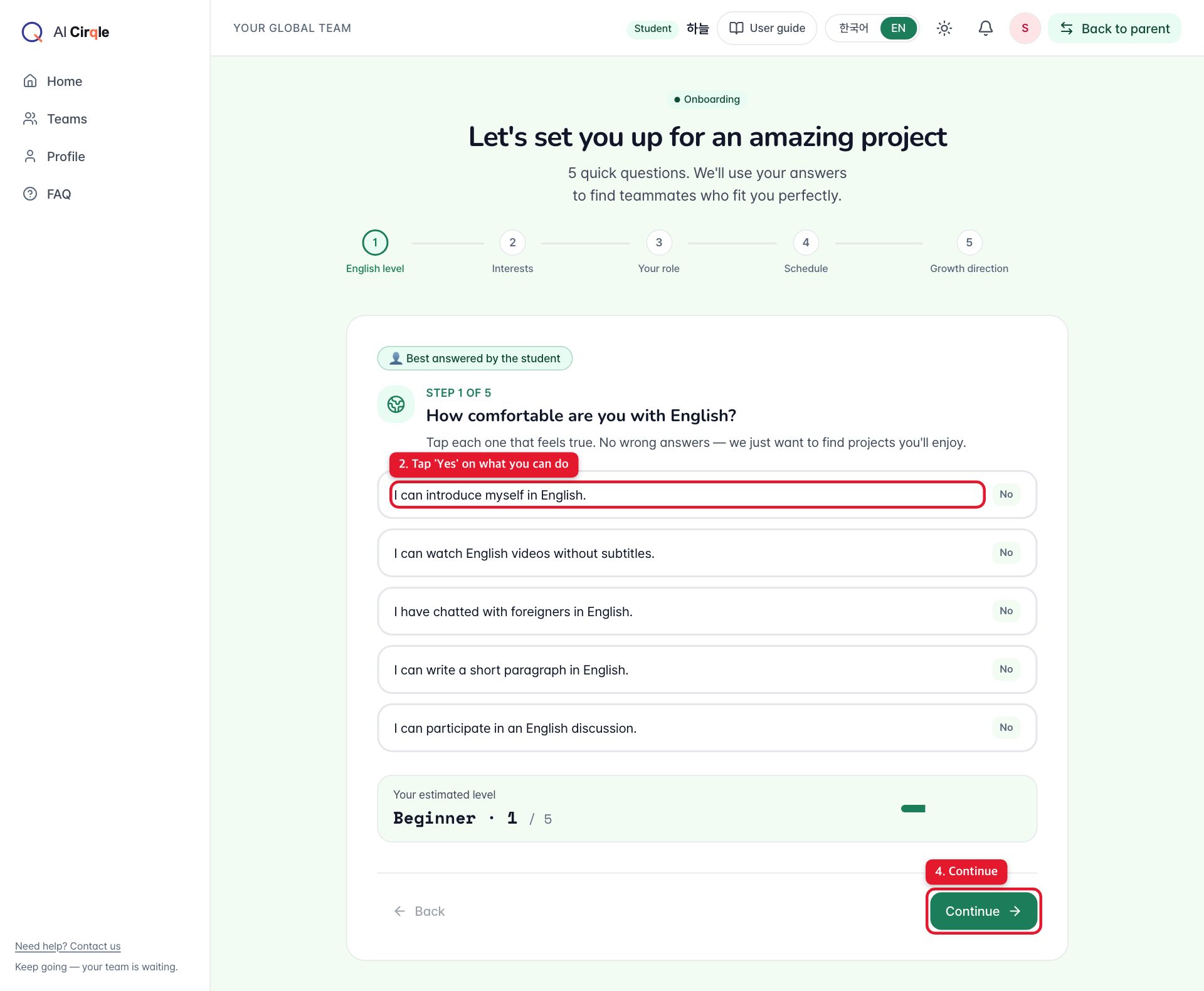
- 1. Shows which step you're on, out of five.
- 2. Press 'Yes' on each thing you can do. Just be honest.
- 3. Your estimated English level from your answers (1 to 5).
- 4. Goes to the next step. 'Back' returns to the previous one.
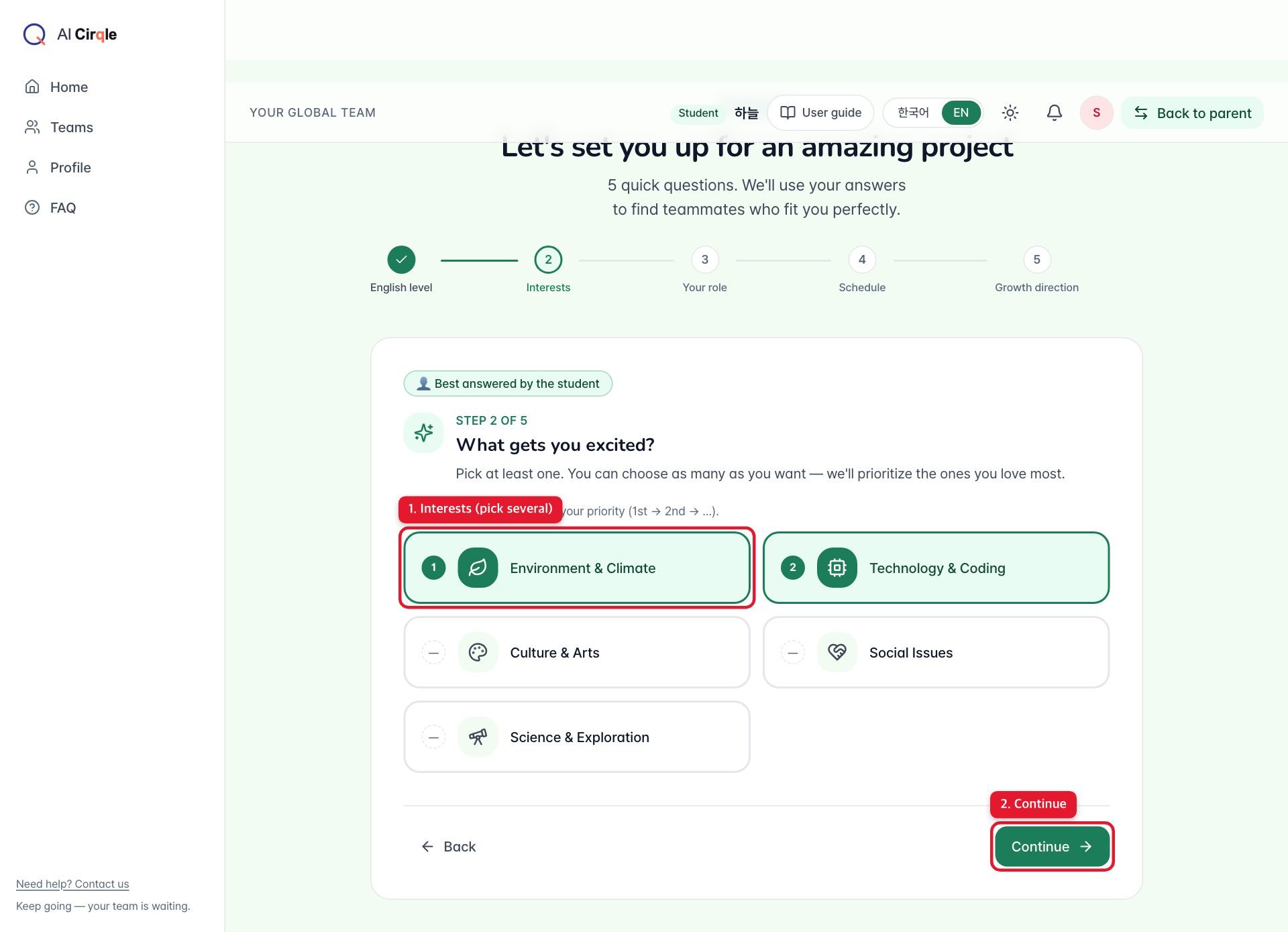
- 1. Pick topics you like. You can pick several, and the ones you pick first count more.
- 2. Next step.
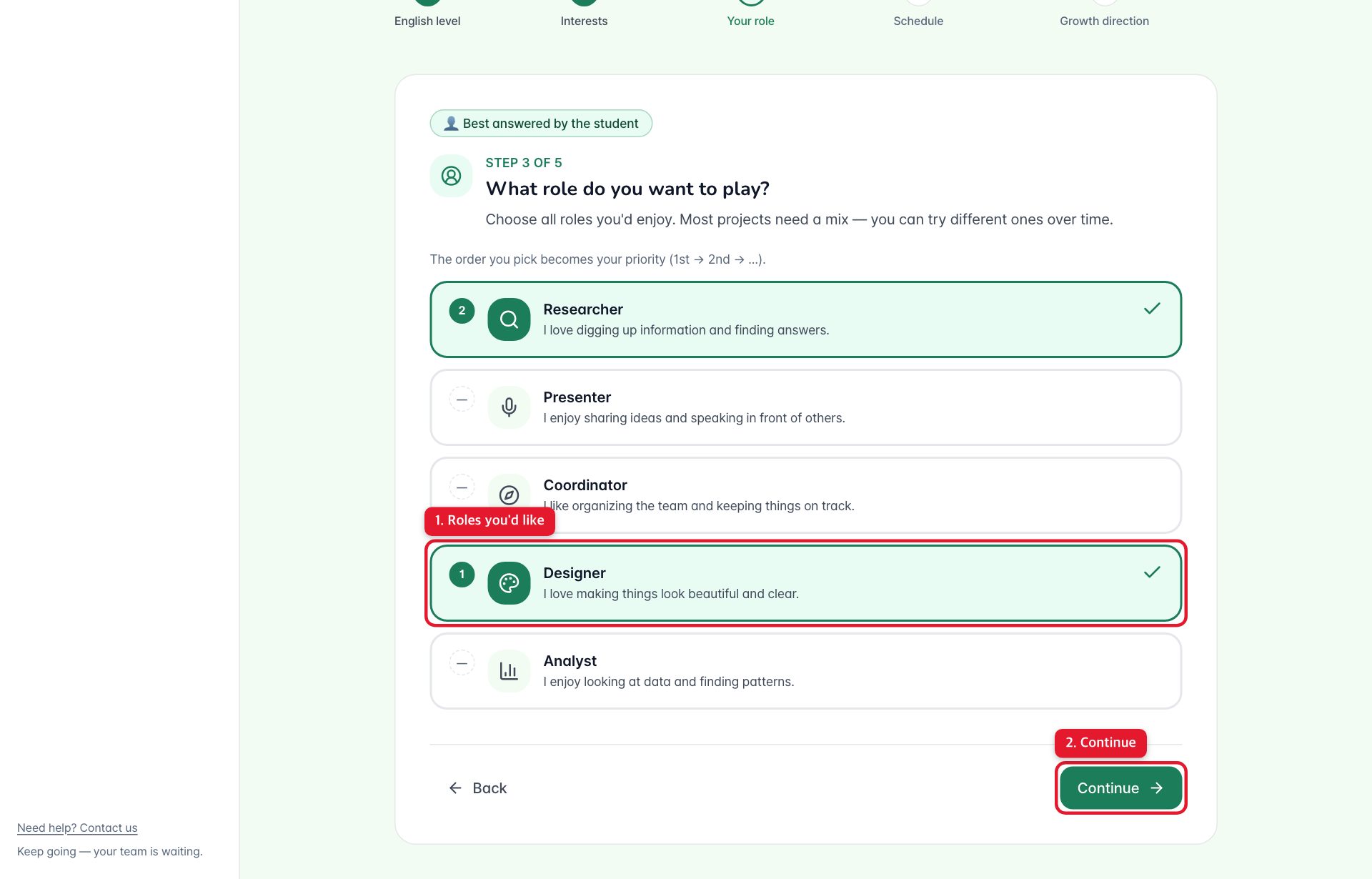
- 1. Pick roles you'd like to try (designer, researcher and so on). The order you pick them is the priority.
- 2. Next step.
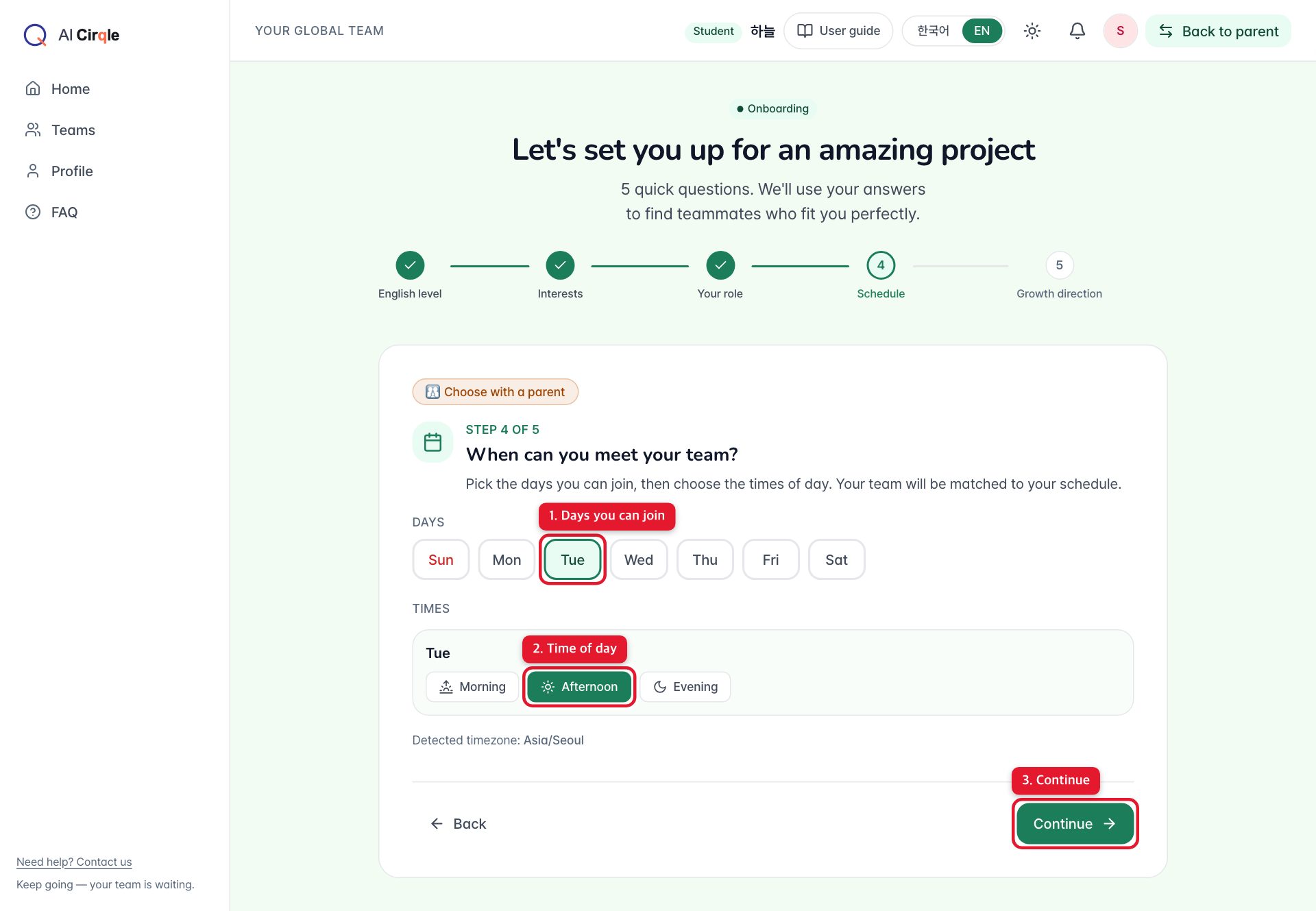
- 1. Pick the days you can meet your team.
- 2. Pick the time of day that works.
- 3. Next step.
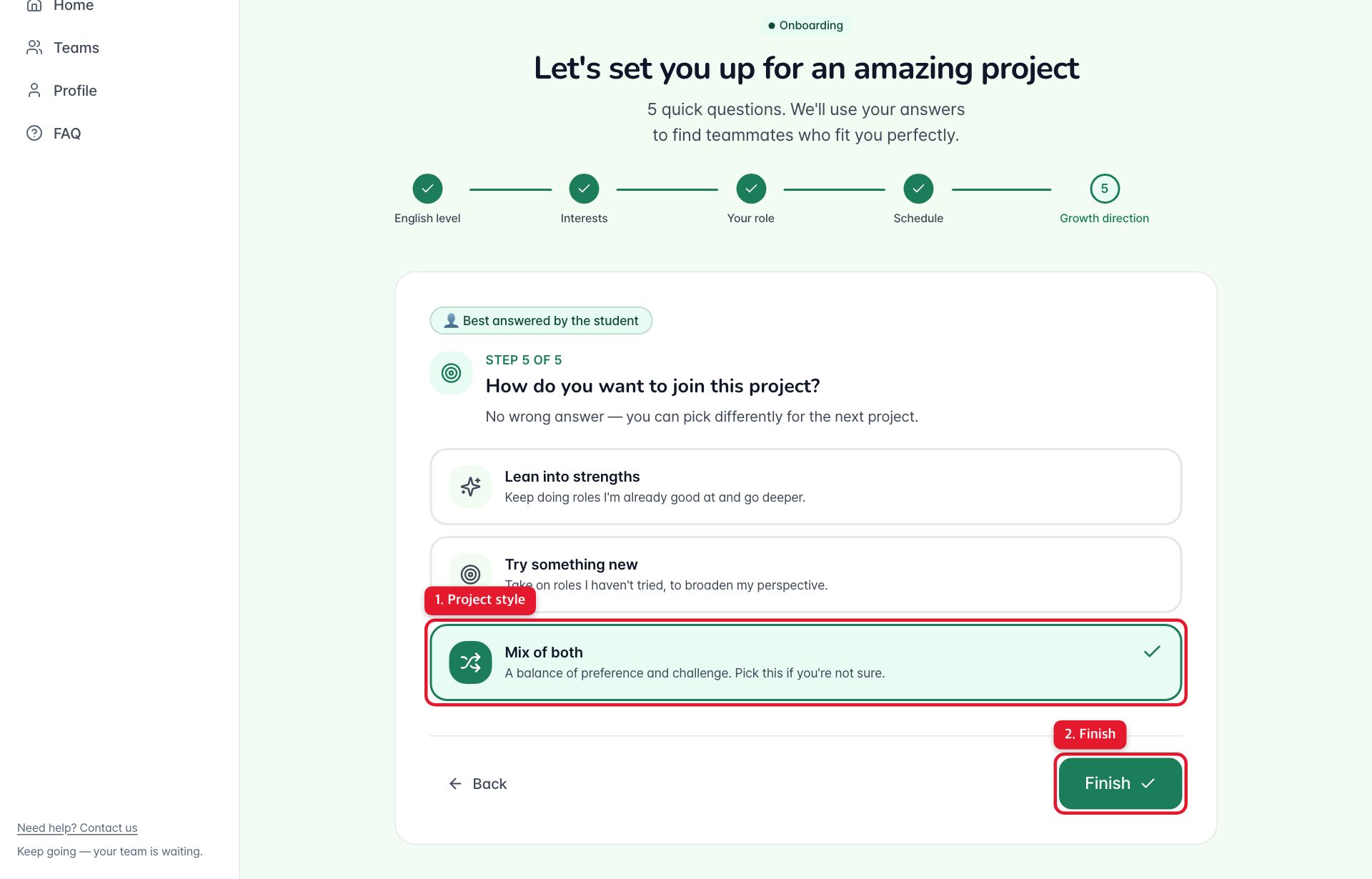
- 1. Grow your strong role, try a new one (challenge), or mix both. Not sure? Pick mix.
- 2. Finishes and takes you home.
Home: recommended projects and joining
After onboarding, Home shows projects picked for you. Press 'Join project' on one you like. A team is formed and you land in the team workspace.
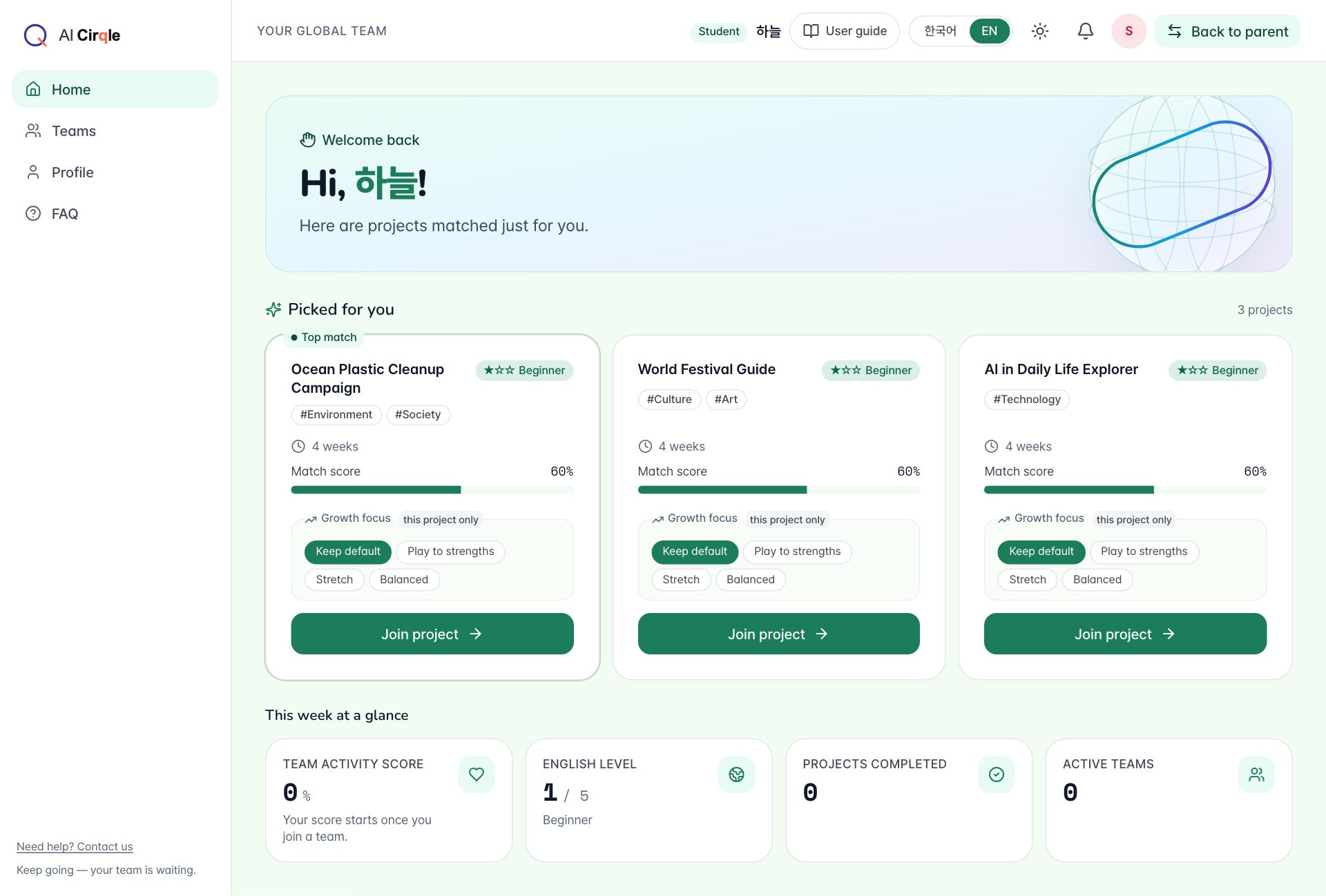
- 1. A four-step tour of Home. Press 'Next' to go through it.
- 2. 'Skip' if you want to start right away.
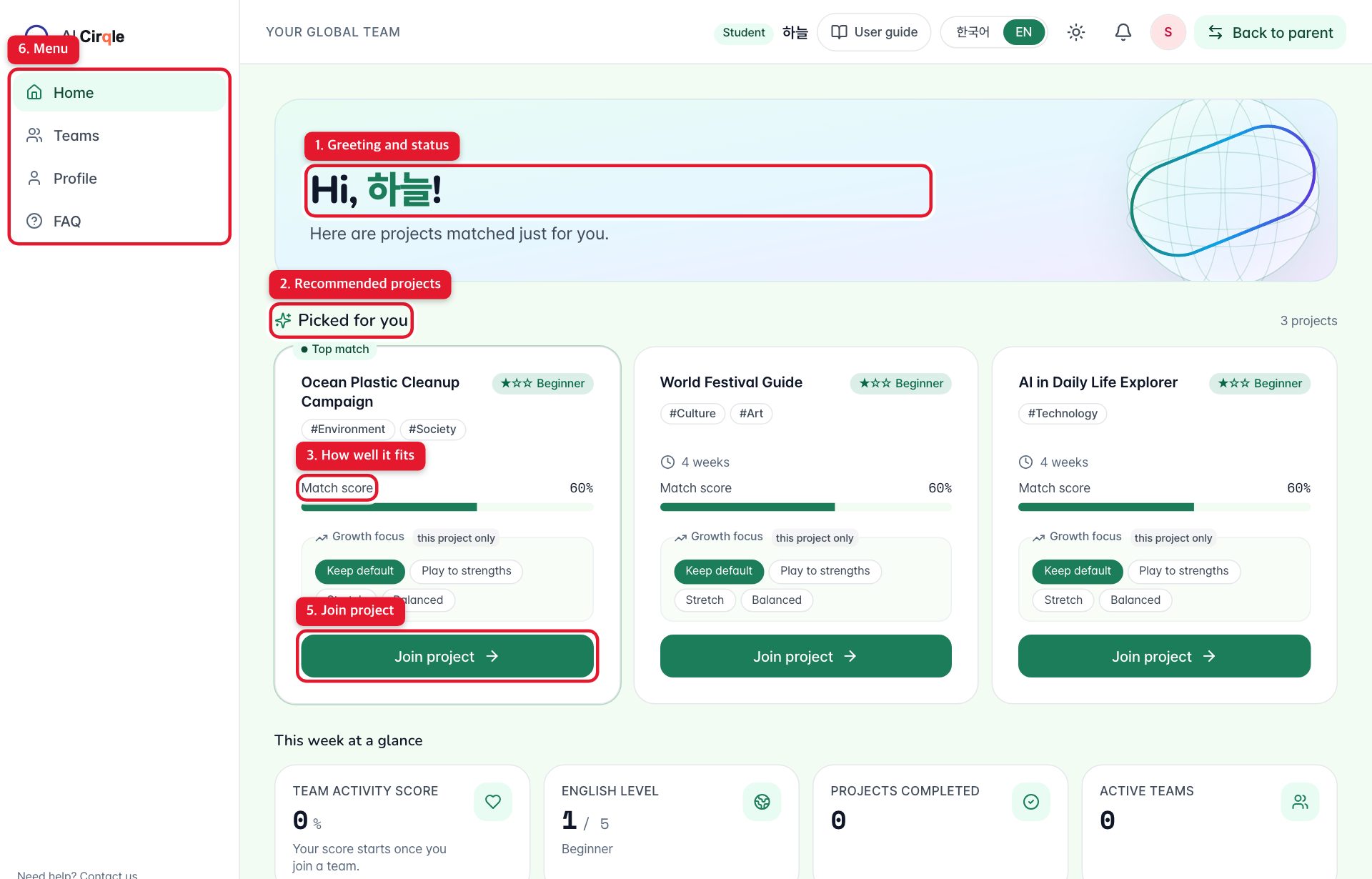
- 1. Tells you where you are: recommendations, finding a team, or in a project.
- 2. Projects picked for you. 'Top match' marks the best fit.
- 3. Match score: how well it fits your interests, roles and schedule.
- 4. Change your growth direction for this project only. 'Default' keeps your onboarding choice.
- 5. Joins, forms your team and opens the team workspace.
- 6. Menu: Home, Teams, Profile and FAQ.
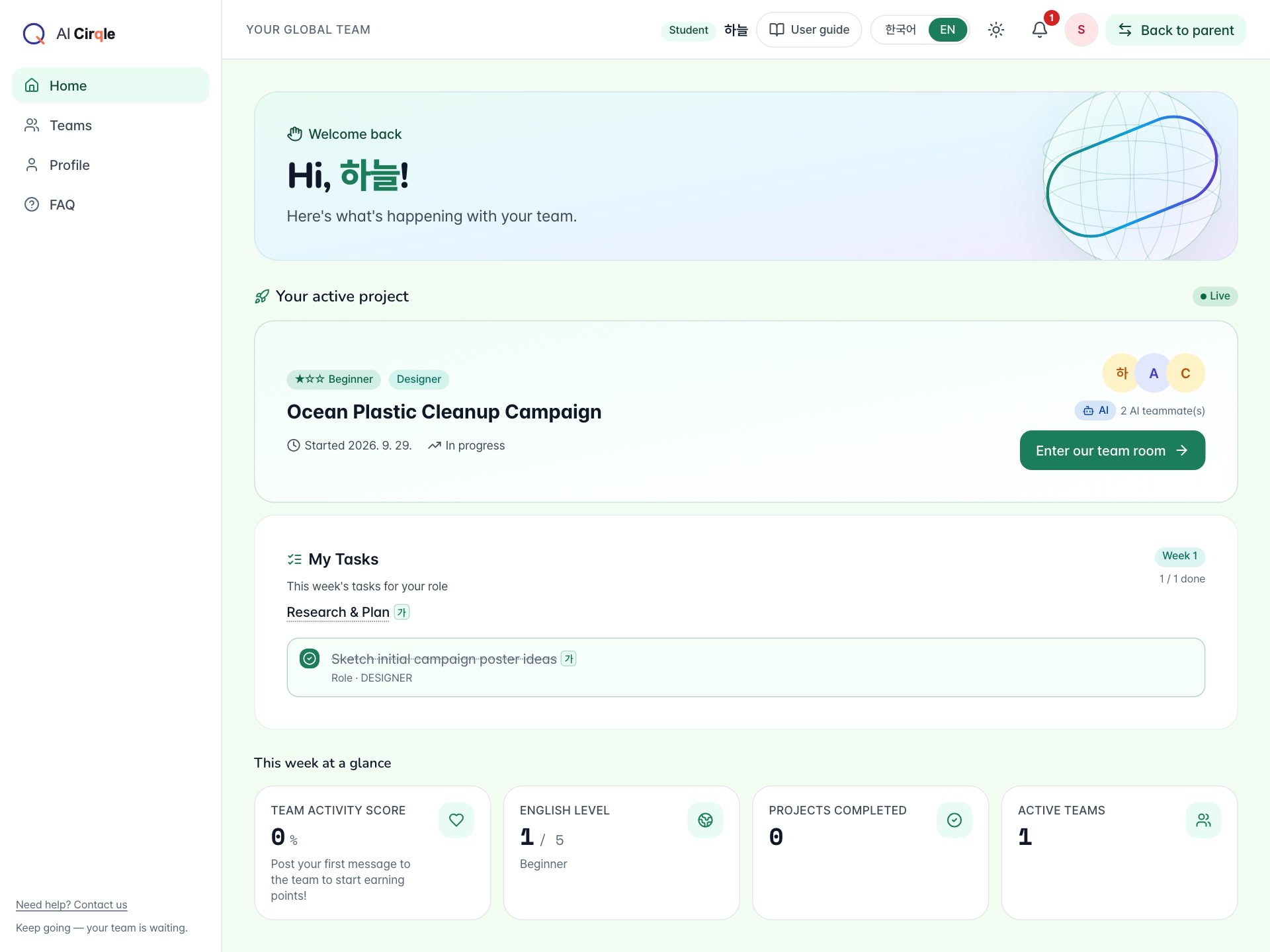
- 1. The project you're working on.
- 2. Jumps to your team workspace.
- 3. This week's tasks for your role. You can tick them off right here.
- 4. Your team activity score. It goes up as you post and finish tasks.
Team workspace
Around the team workspace
The workspace has six tabs: Overview, Team, Milestones, Activity, Outputs and Peer Review. Press 'Refresh' to check for new posts.
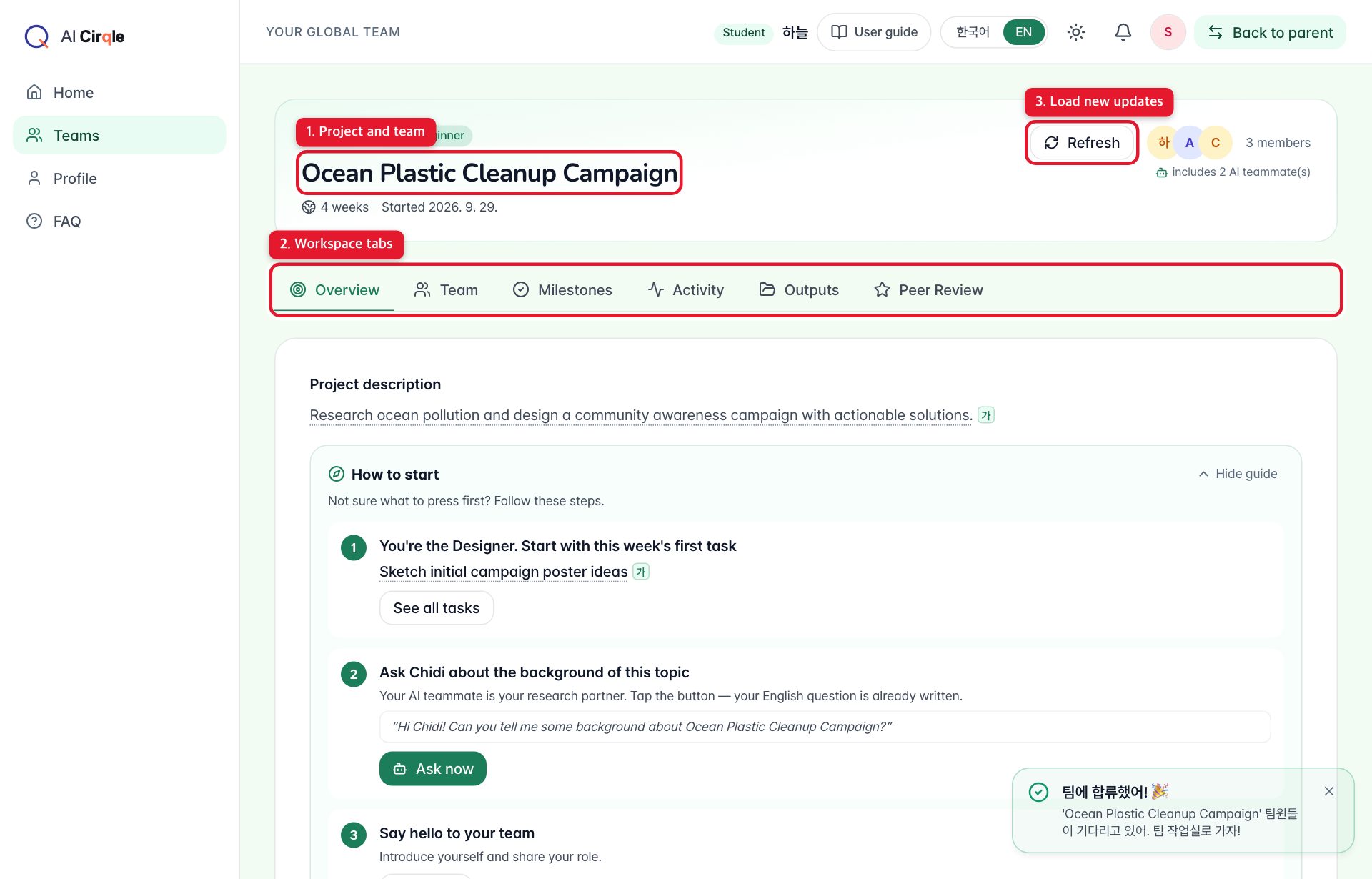
- 1. Project name, length and start date.
- 2. Tabs move you around the workspace.
- 3. Loads new posts from teammates and AI teammates.
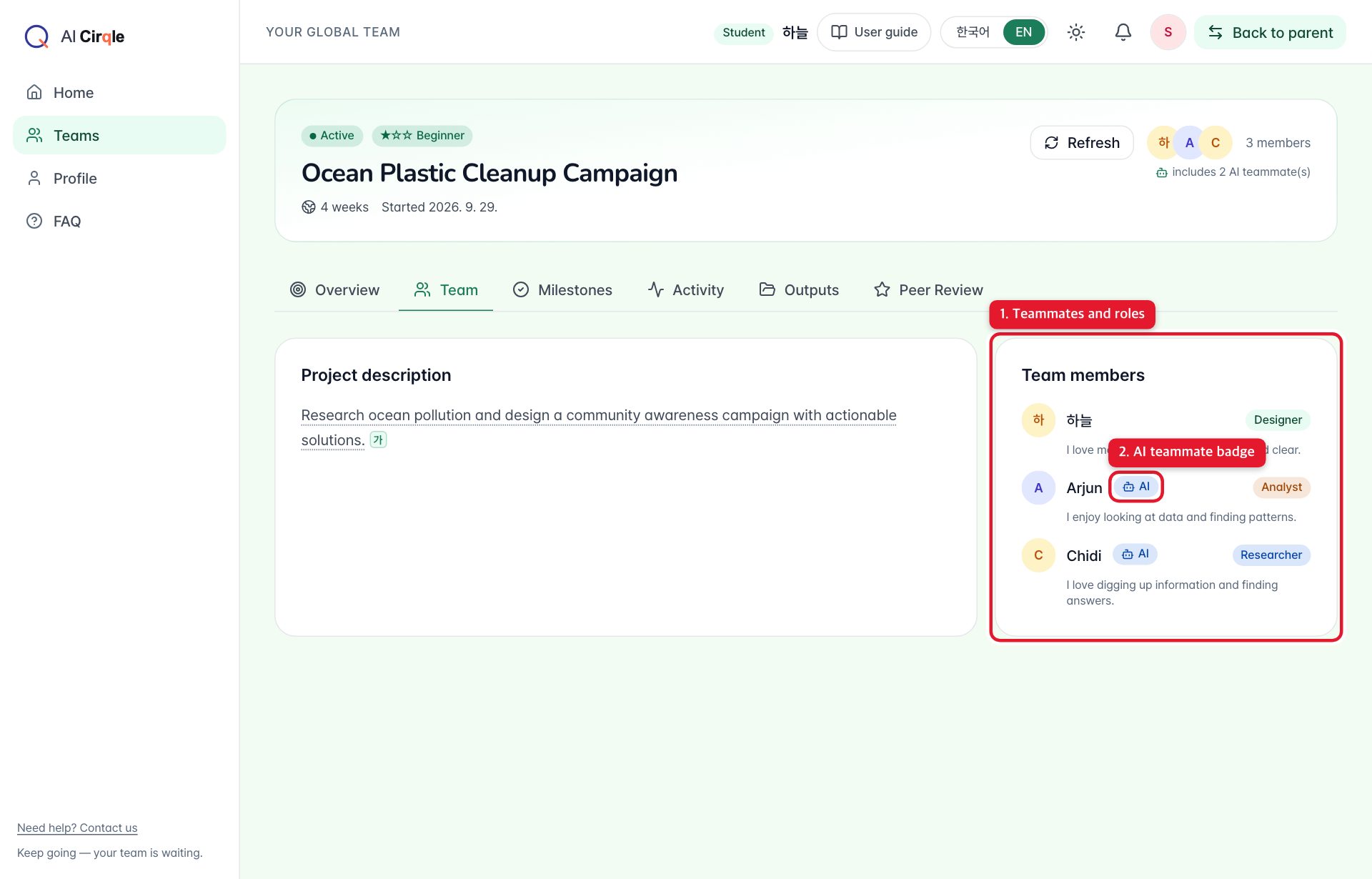
- 1. Your teammates and each one's role.
- 2. Teammates marked 'AI' are AI teammates. They reply and work with you like a real teammate.
Milestones and my tasks
Each of the four weeks has a goal with tasks per role. Your tasks are marked 'My task' and have a checkbox.
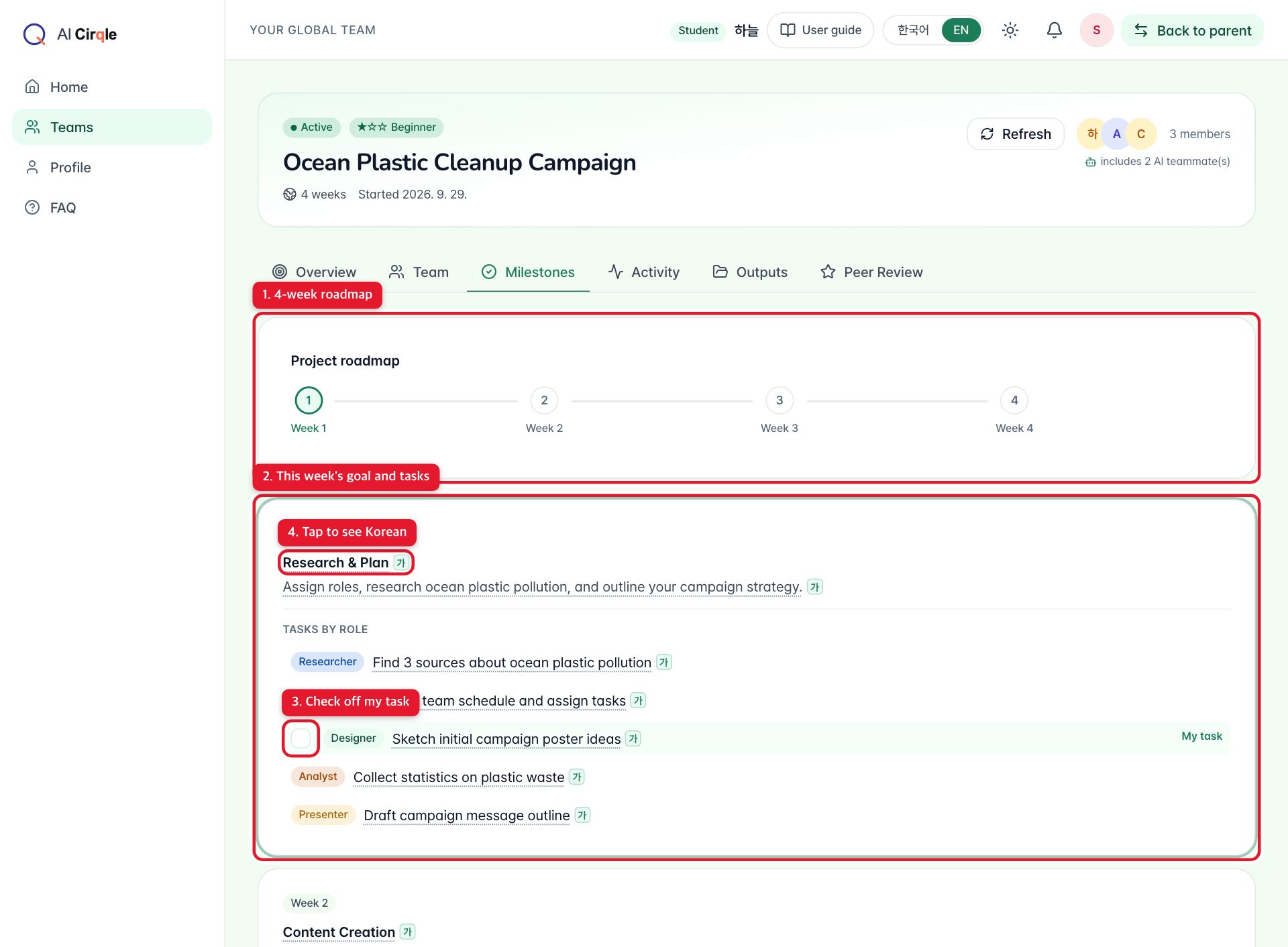
- 1. The four-week roadmap, showing the current week.
- 2. This week's goal and the tasks for each role.
- 3. Tick it when it's done. Tap again to undo.
- 4. Hover or tap an English sentence to see it in Korean.
Activity: post to your team
Post what you did, questions and ideas in English. If starting is hard, the 'Need a starter?' buttons drop in an opening phrase.
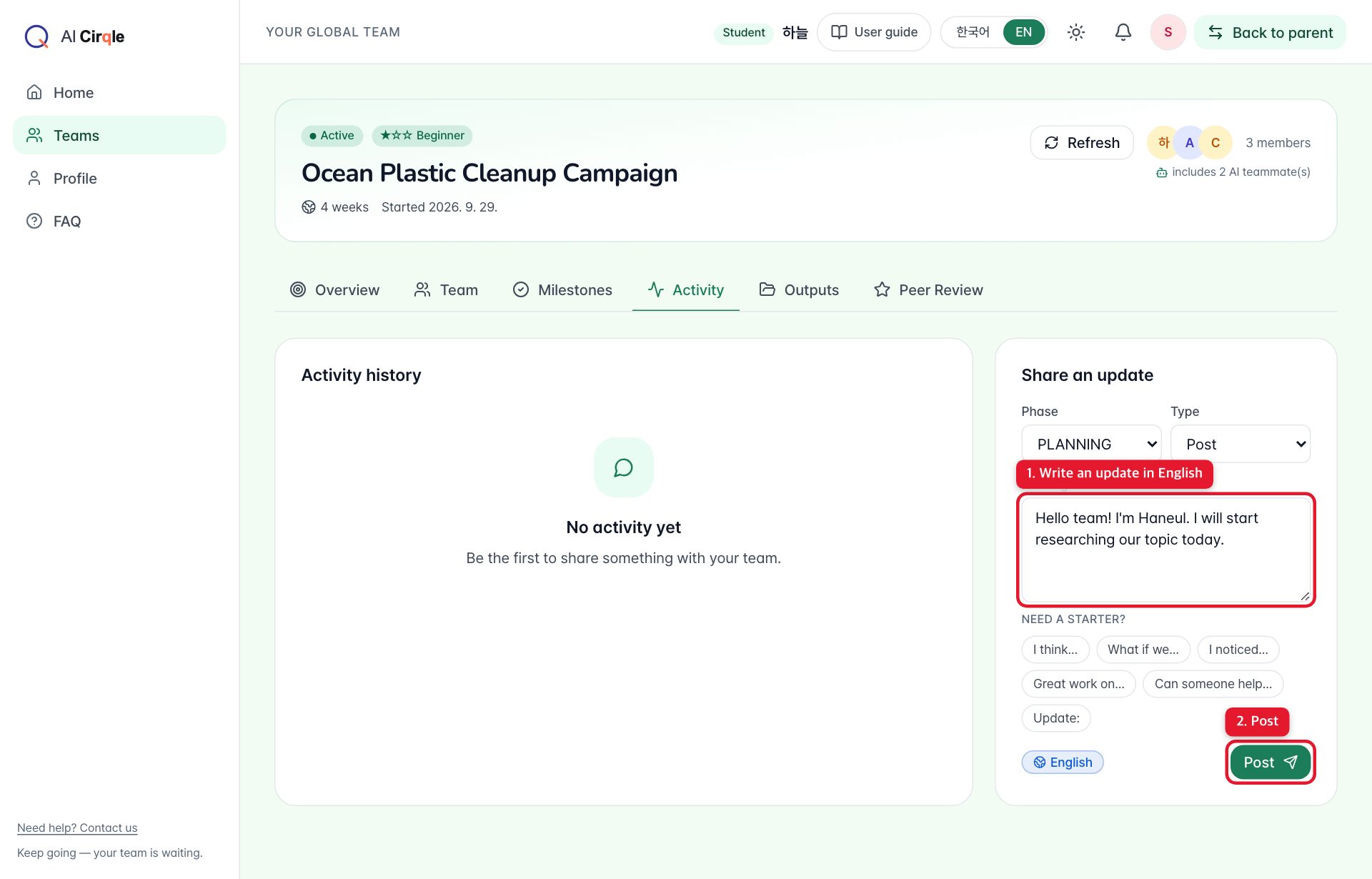
- 1. Write here in English.
- 2. Posts it for the whole team.
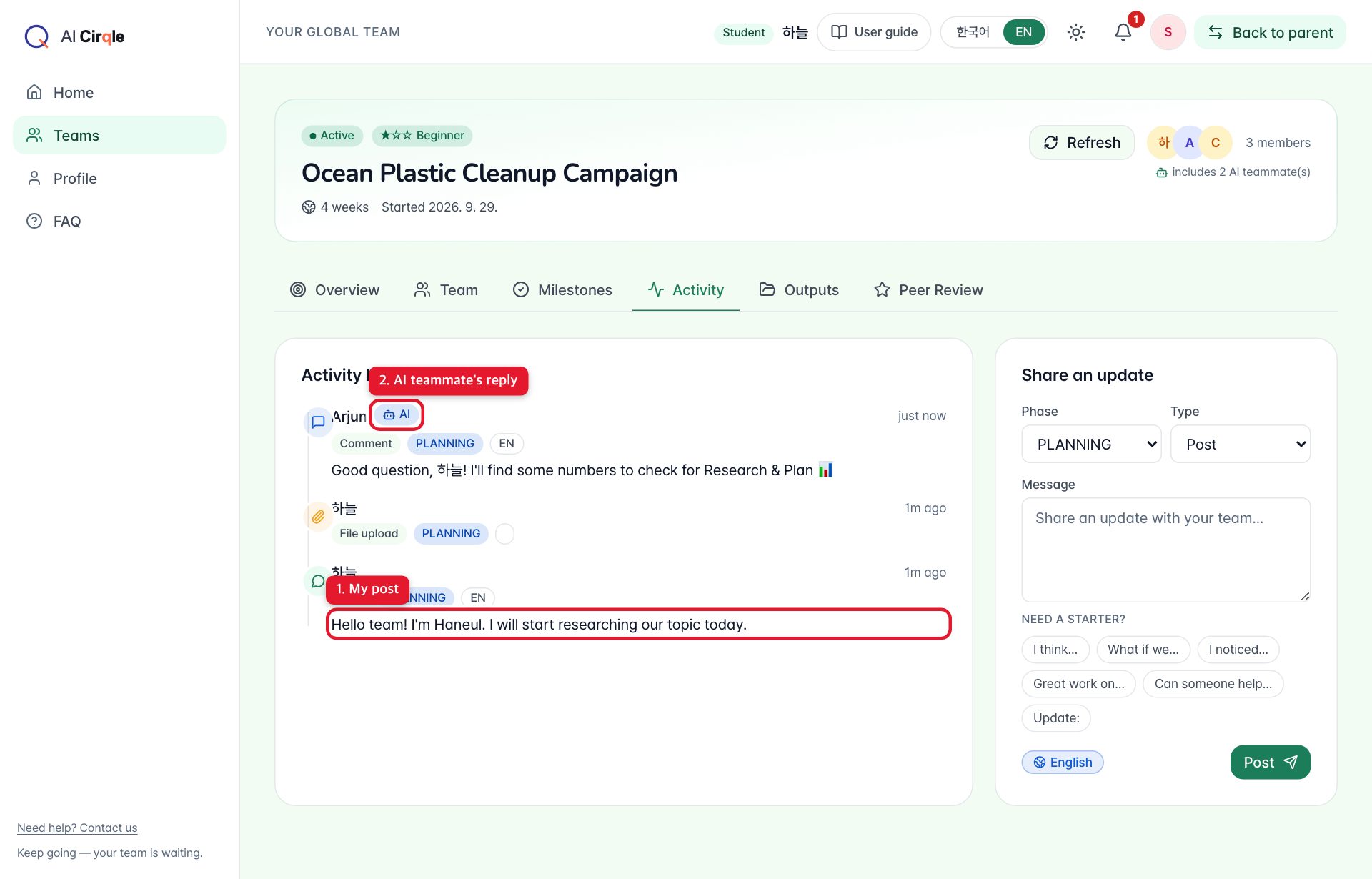
- 1. Your post.
- 2. An AI teammate replies after a short while. Press 'Refresh' if you don't see it yet.
Share an output
Put your document, slides or image somewhere like Google Drive, then register the share link here.
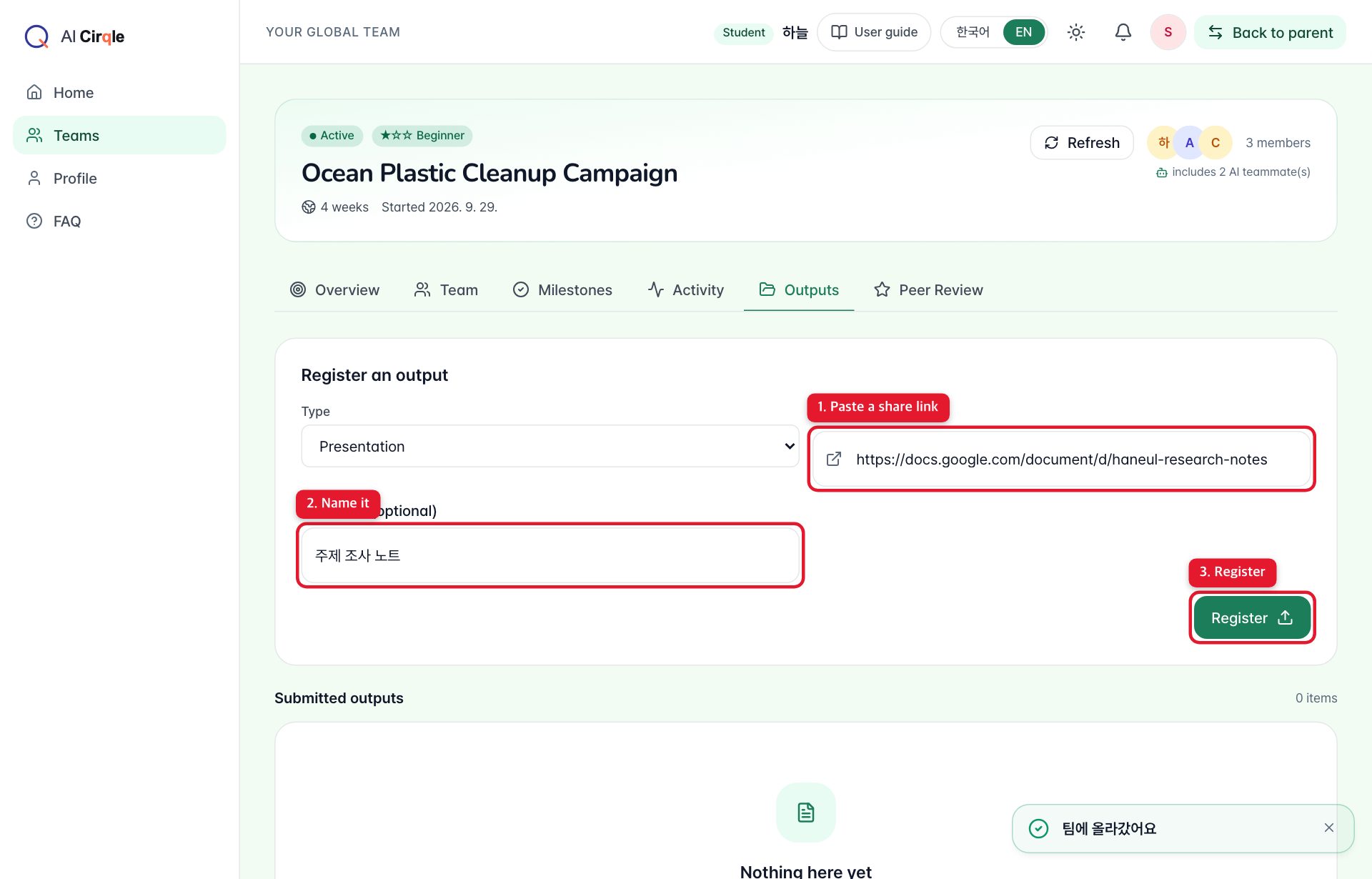
- 1. Paste the share link. Make sure teammates have permission to open it.
- 2. Give it a name.
- 3. Registers it for the whole team to see.
Peer review
Send teammates praise tags and a one-line comment. You can review AI teammates too, for practice. Reviews others sent you show up here as well.
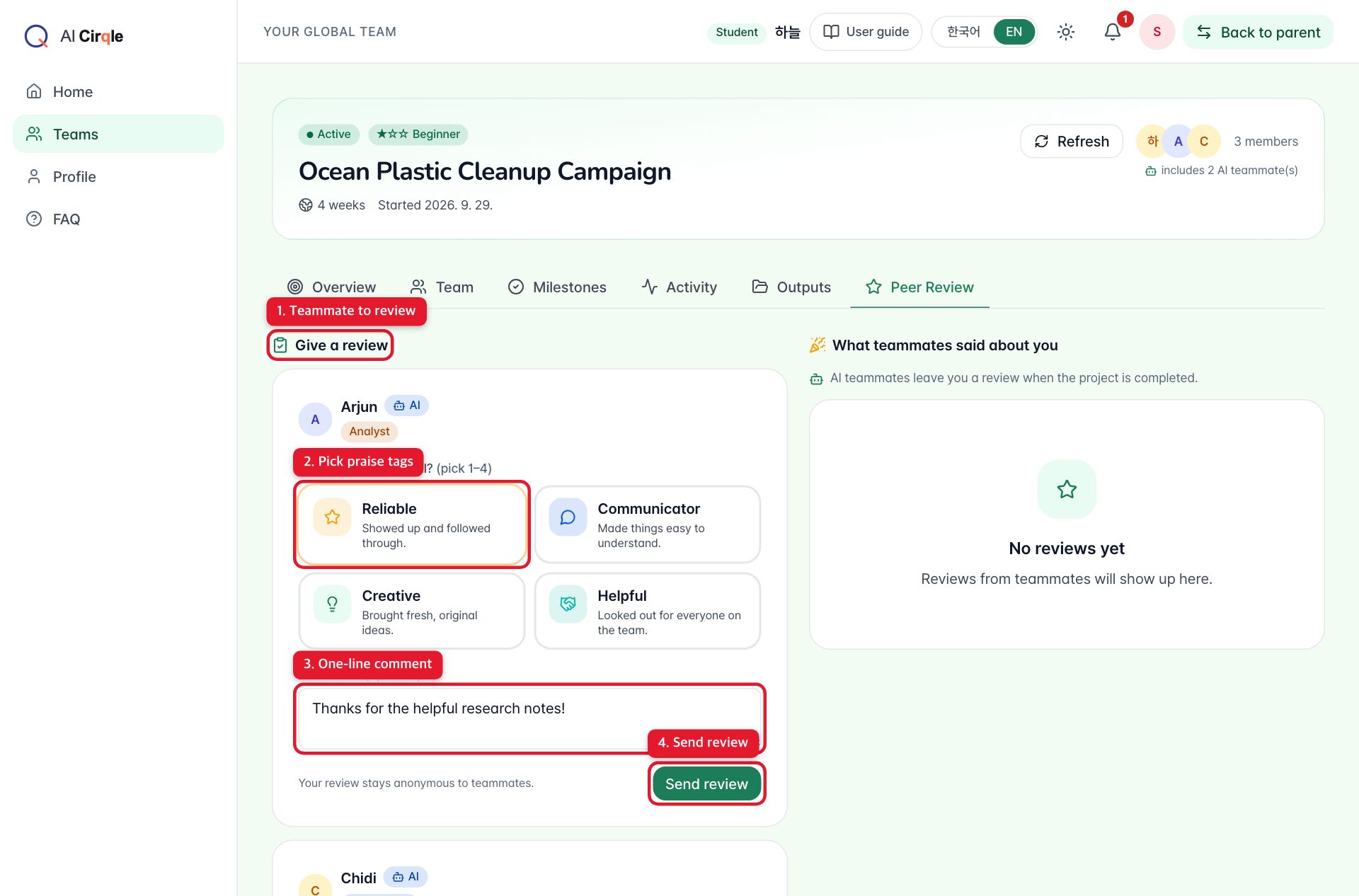
- 1. The teammate you're reviewing.
- 2. Pick the praise that fits: Reliable, Communicator, Creative, Helpful.
- 3. Write a one-line comment in English.
- 4. Sends the review.
More
My teams
All your current and past teams.
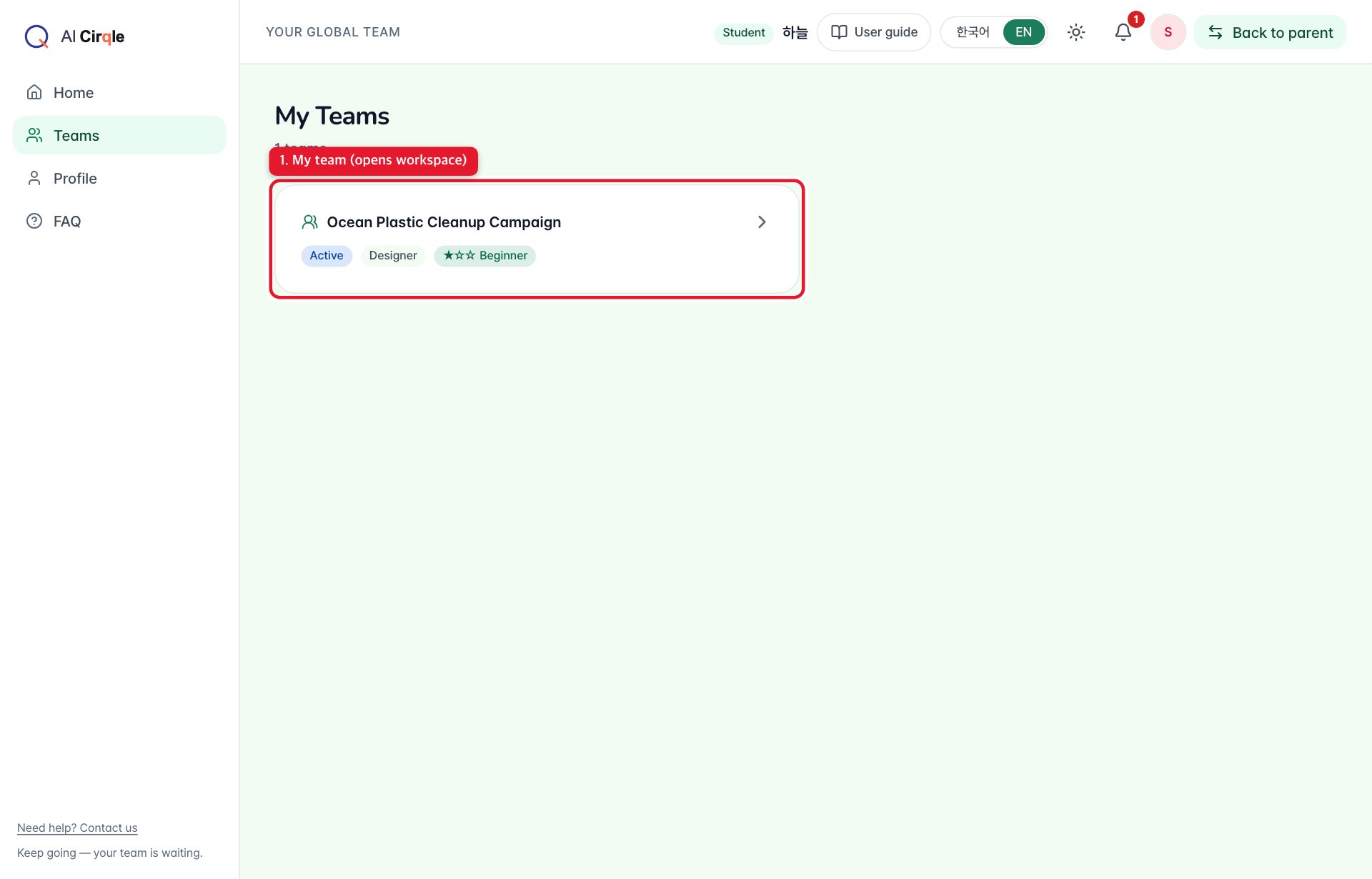
- 1. Open a team to go to its workspace.
My profile
See and change your English level, interests, roles and schedule from onboarding. Changes apply from the next recommendations.
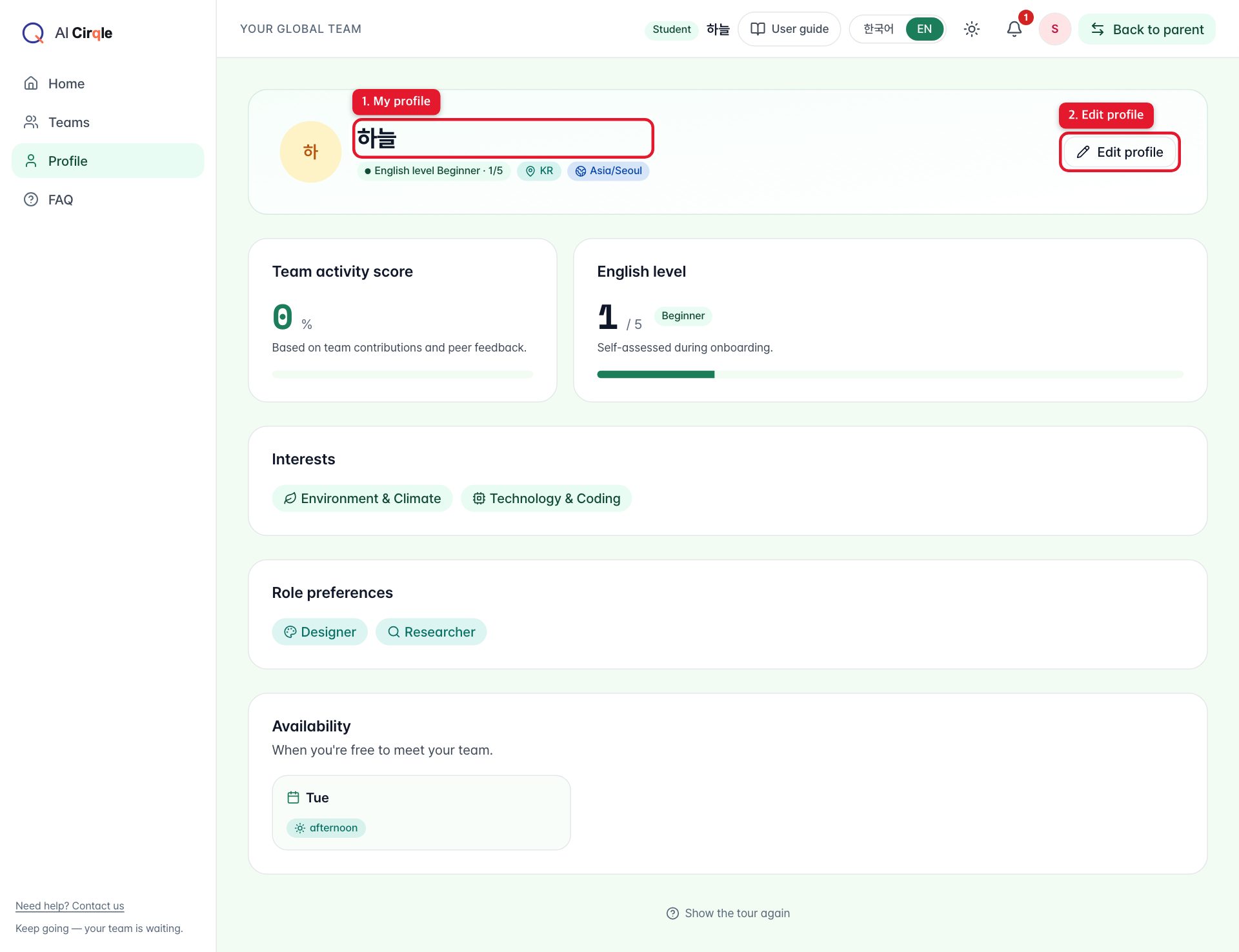
- 1. Your profile.
- 2. Press to edit.
Notifications
You get a notification when a team is formed and when a project ends.
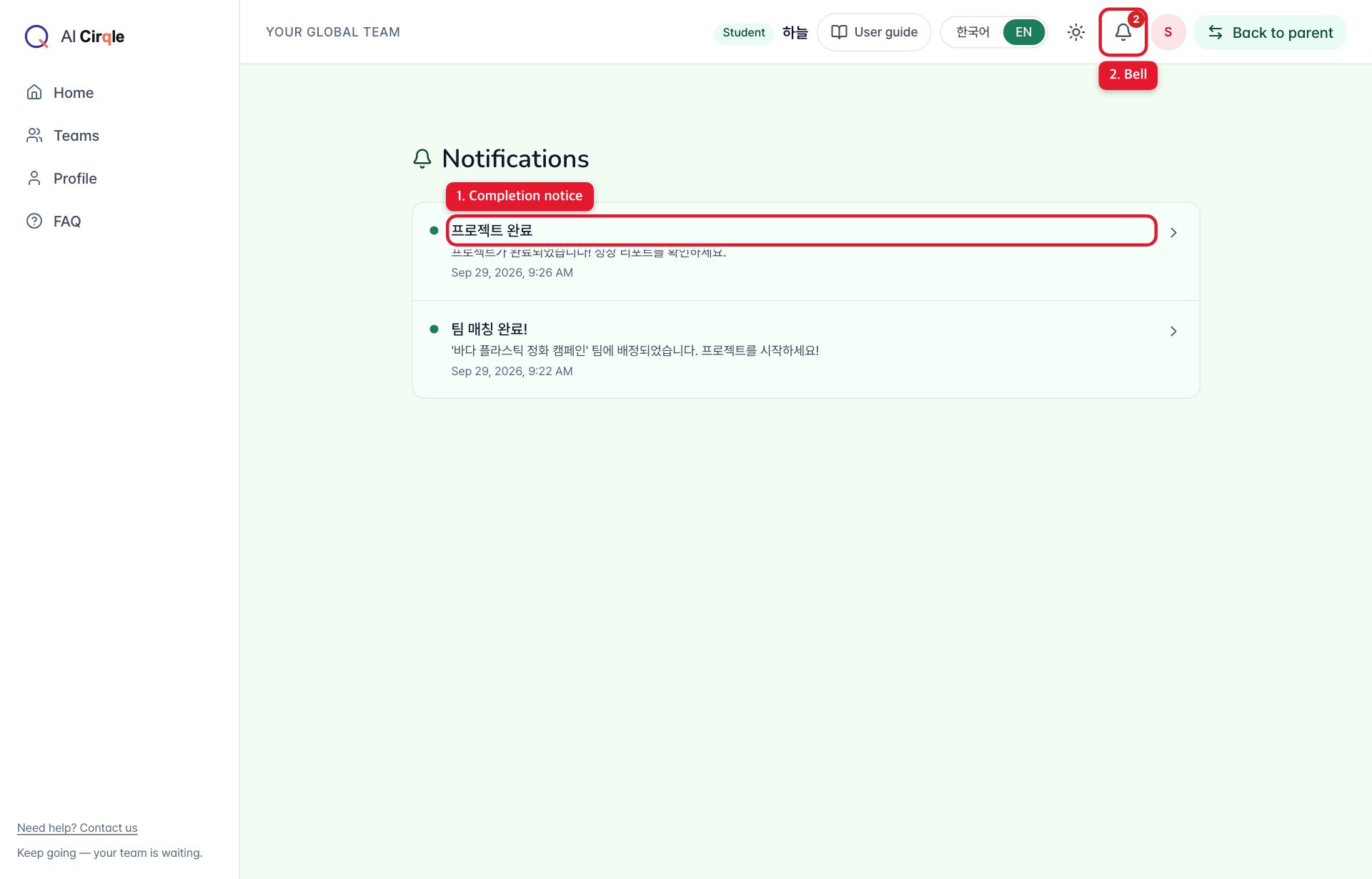
- 1. The project-complete notice. Tap to see the results.
- 2. The bell shows how many are unread.
When a project ends
After four weeks the project is completed. Once your parent reviews the growth report and approves, you can join the next project.
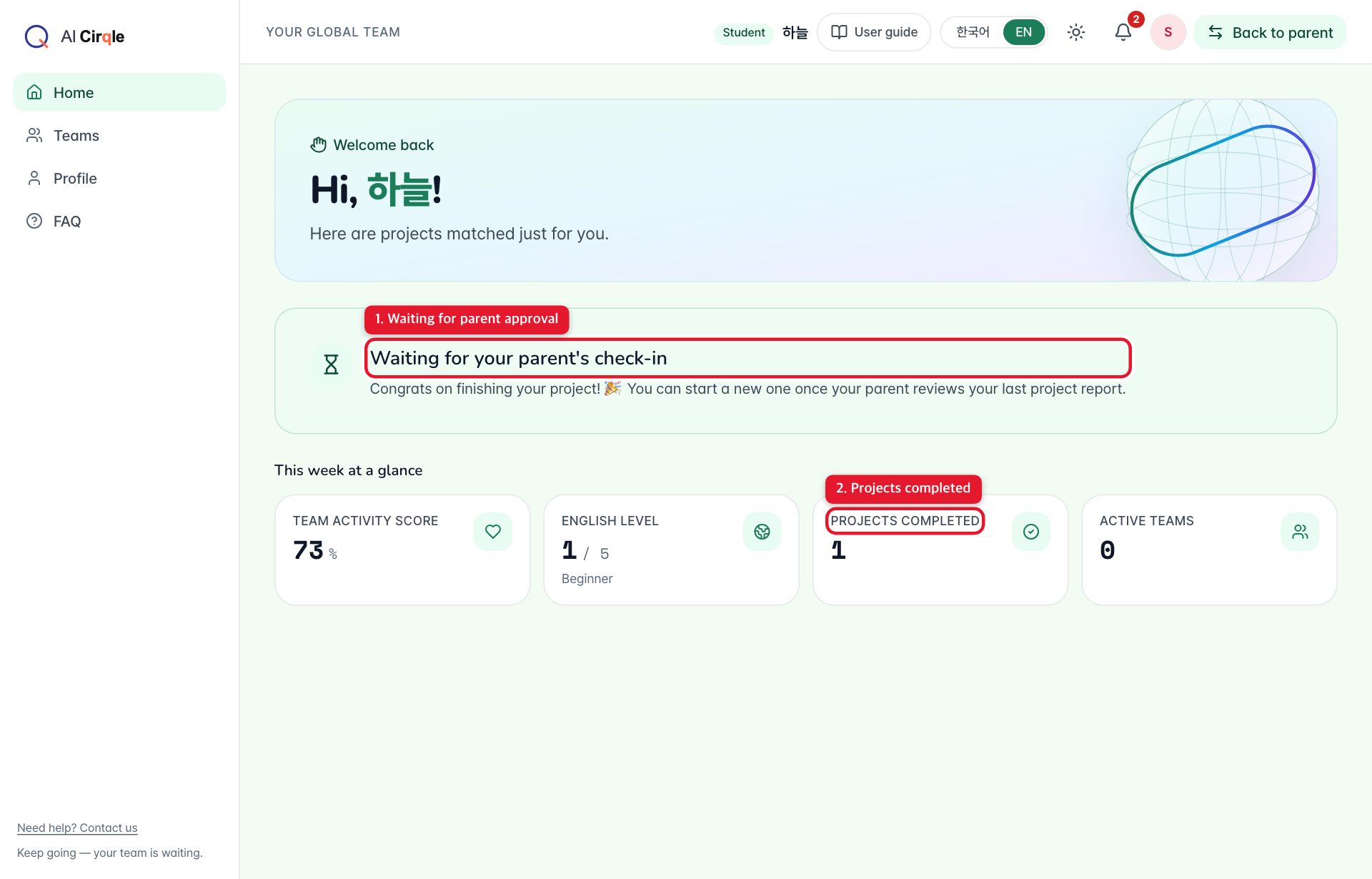
- 1. Shown until your parent checks in. Joining a new project is paused until then.
- 2. Your completed-projects count goes up.
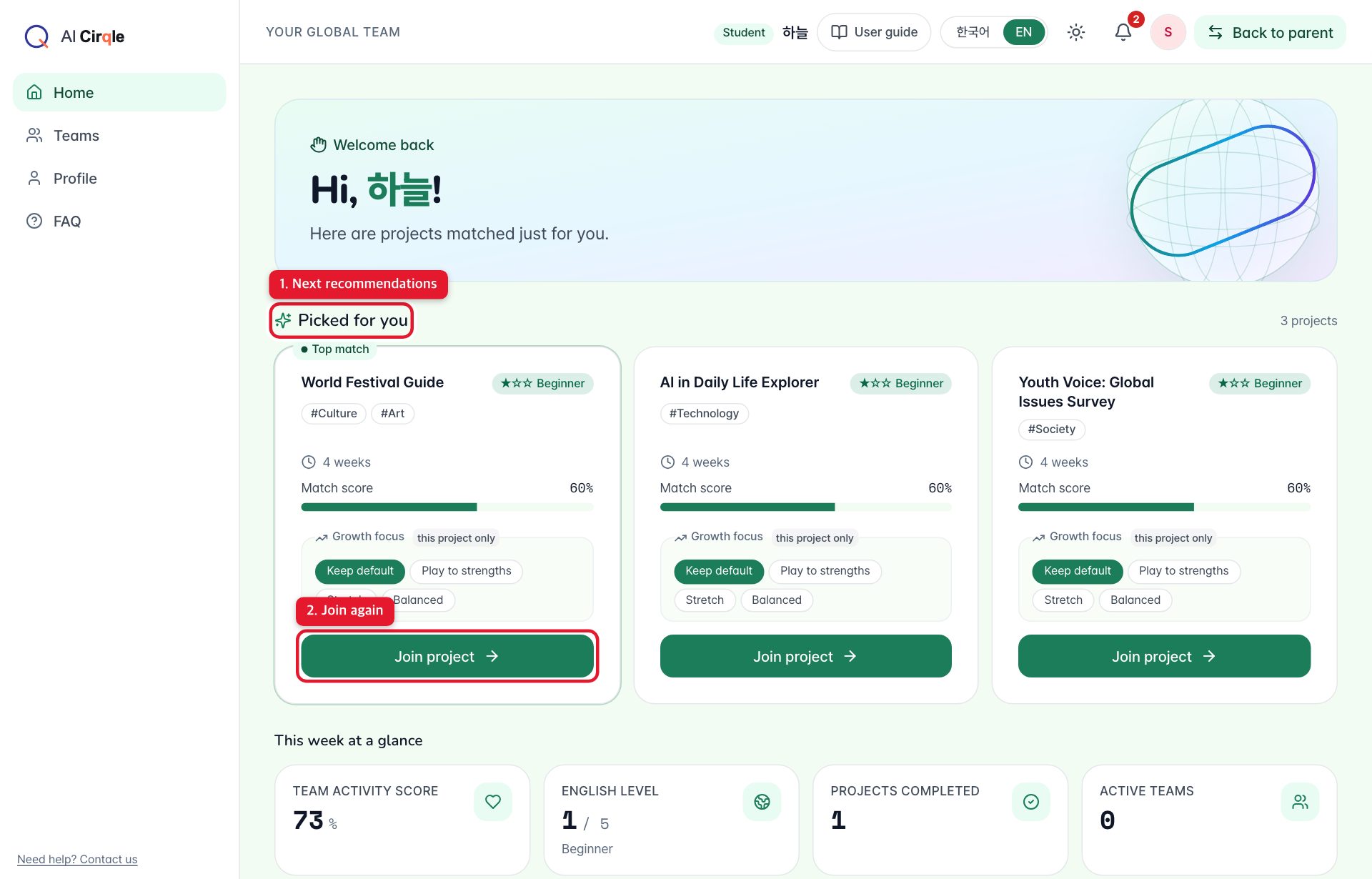
- 1. New picks based on what you did last time.
- 2. Press 'Join project' again to start with a new team.
Back to your parent's screen
When you're done, press 'Back to parent'. The parent screen is locked with a password, so your parent opens it.
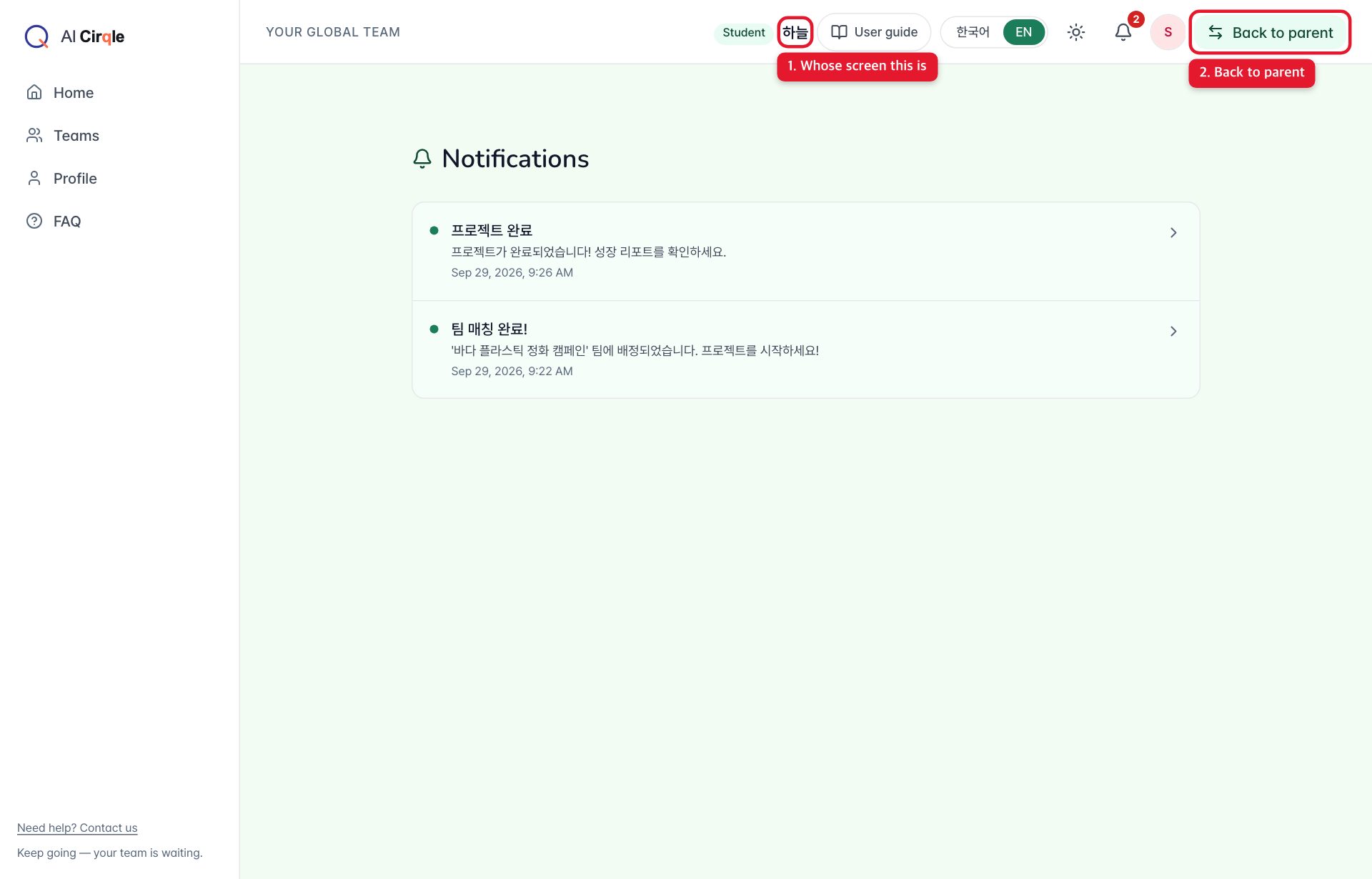
- 1. Shows whose screen this is.
- 2. Returns to the parent screen.
FAQ
Check here first. Still stuck? Email us together with your parent.
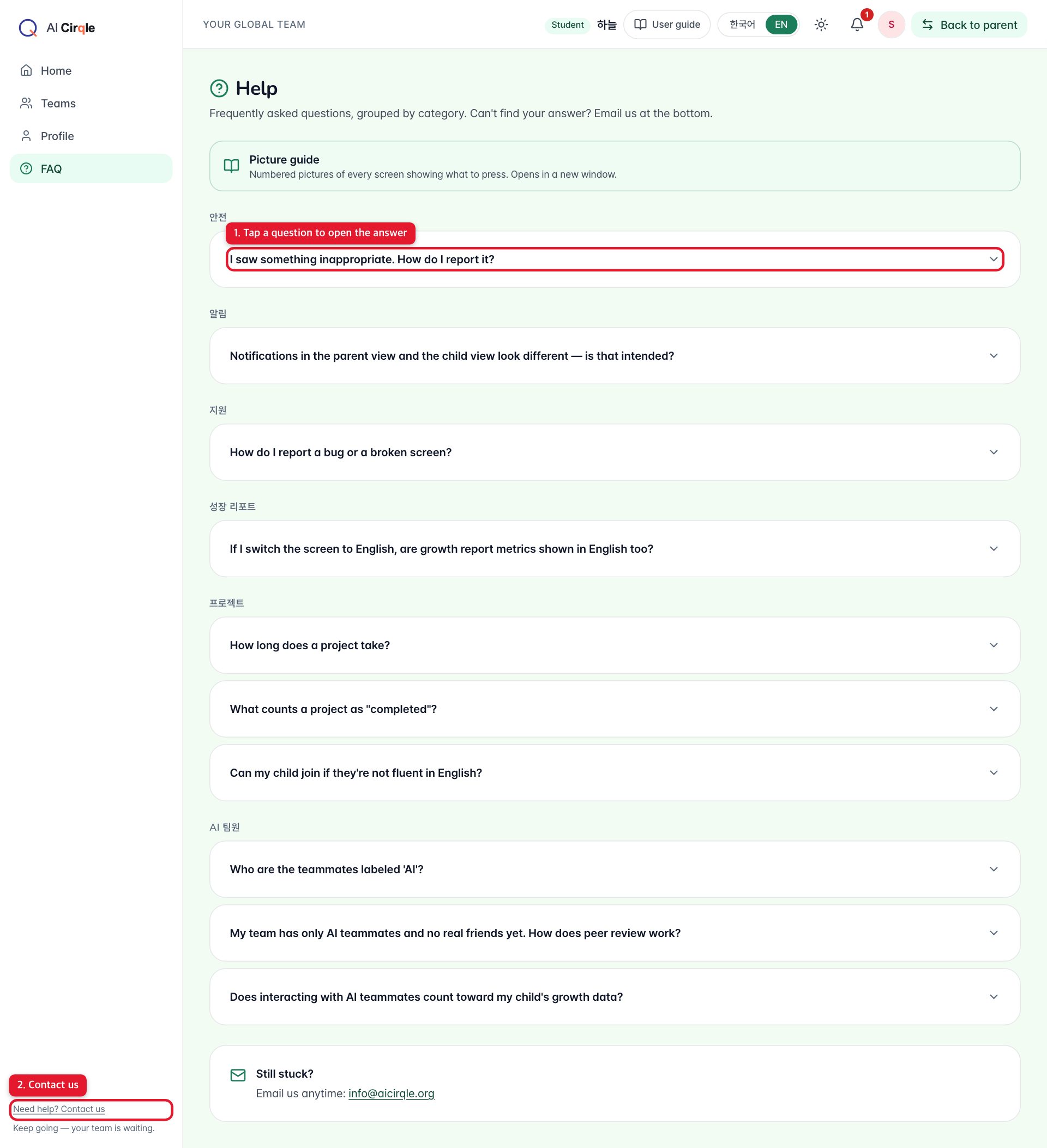
- 1. Tap a question to open the answer.
- 2. Email us.
Questions and answers at a glance
- What do I do the first time I sign in? (onboarding)
- The first time in, you answer five questions. We use them to find projects and teammates that fit you. There are no wrong answers, and you can change them later in your profile. See it with pictures
- How do I choose and join a project?
- After onboarding, Home shows projects picked for you. Press 'Join project' on one you like. A team is formed and you land in the team workspace. See it with pictures
- What's in the team workspace?
- The workspace has six tabs: Overview, Team, Milestones, Activity, Outputs and Peer Review. Press 'Refresh' to check for new posts. See it with pictures
- Where do I see and check off this week's tasks?
- Each of the four weeks has a goal with tasks per role. Your tasks are marked 'My task' and have a checkbox. See it with pictures
- How do I post an update to my team?
- Post what you did, questions and ideas in English. If starting is hard, the 'Need a starter?' buttons drop in an opening phrase. See it with pictures
- How do I share something I made?
- Put your document, slides or image somewhere like Google Drive, then register the share link here. See it with pictures
- How do I review a teammate?
- Send teammates praise tags and a one-line comment. You can review AI teammates too, for practice. Reviews others sent you show up here as well. See it with pictures
- Where do I see all my teams?
- All your current and past teams. See it with pictures
- How do I change my interests or schedule?
- See and change your English level, interests, roles and schedule from onboarding. Changes apply from the next recommendations. See it with pictures
- When do I get notifications?
- You get a notification when a team is formed and when a project ends. See it with pictures
- What happens when a project ends?
- After four weeks the project is completed. Once your parent reviews the growth report and approves, you can join the next project. See it with pictures
- How do I go back to my parent's screen?
- When you're done, press 'Back to parent'. The parent screen is locked with a password, so your parent opens it. See it with pictures
- Where do I look when I'm stuck?
- Check here first. Still stuck? Email us together with your parent. See it with pictures