

Institution guide
Academies, schools and organizations can follow their students' team projects in AI Cirqle. A student is linked only when the parent enters the institution's invite code and agrees to sharing. The manager sees every student and manages teacher accounts, assignments and invite codes. Teachers see only the students assigned to them and their teams.
Screens as of
1The red numbers on each picture match the numbered notes below it.
Getting started
Sign in
Sign in at admin.aicirqle.org with the account the AI Cirqle team (for managers) or your institution's manager (for teachers) created for you. Institution accounts can't be created from the sign-up page.
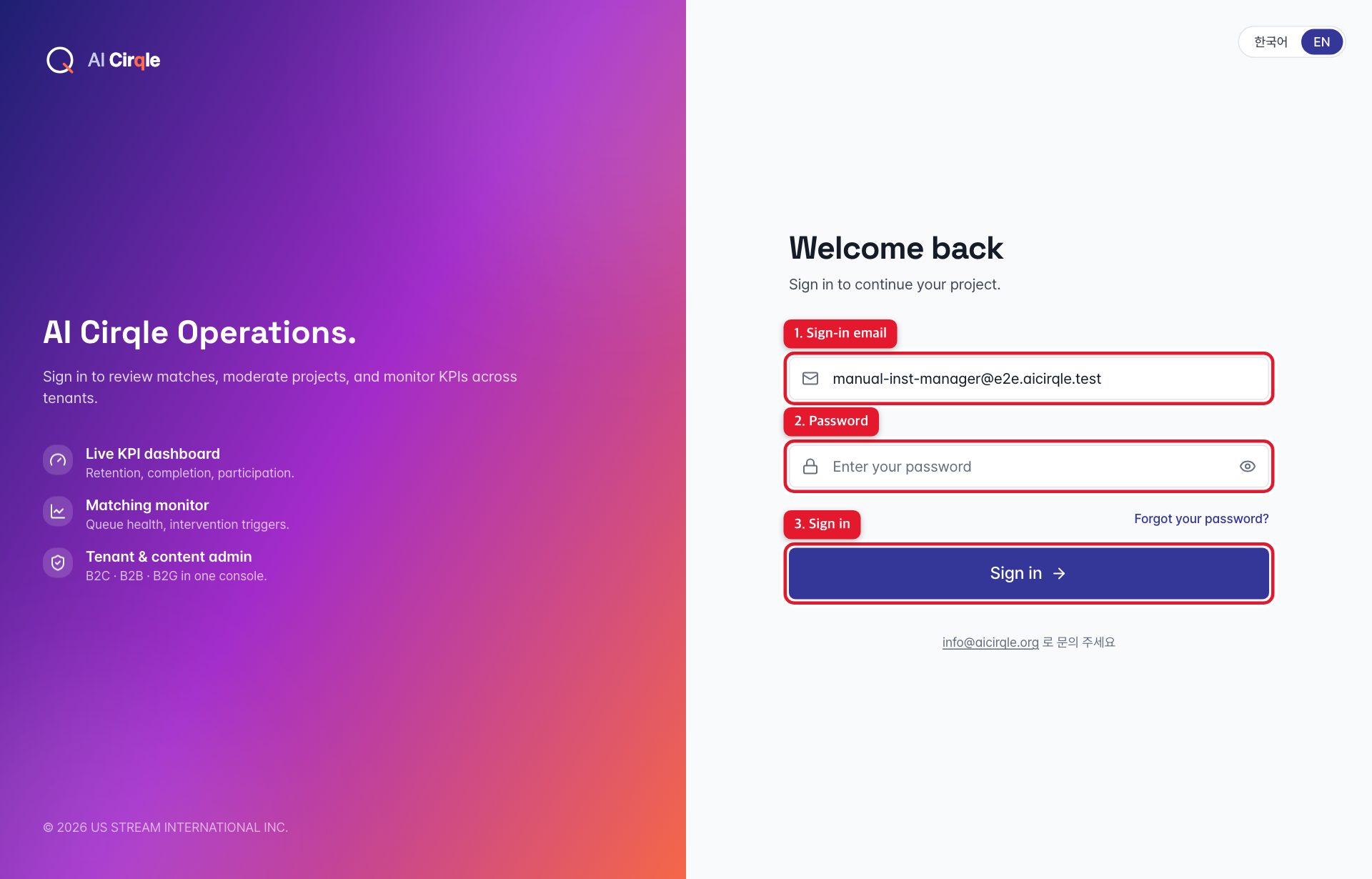
- 1. The sign-in email you were given.
- 2. The initial password. After signing in, a 'Change password' notice appears at the top until you change it.
- 3. Signs in and opens the student list.
Good to know
- An email already used for a parent account can't be used for a staff account. If you're also a parent, use a different email for your staff account.
How students are linked
The manager creates a code under Invite codes and gives it to parents. When a parent enters it on the sign-up page or the child's page and agrees to sharing, the child appears in your student list. Institutions don't register students themselves.
Good to know
- What parents see is in the Parent guide under 'Linking an academy, school or organization'. Parents can unlink at any time, and the student disappears from your screens right away.
Students and teams
Students
Each linked student's English level, current team, completed projects, teachers and latest activity on one line. Managers see everyone; teachers see only their assigned students.
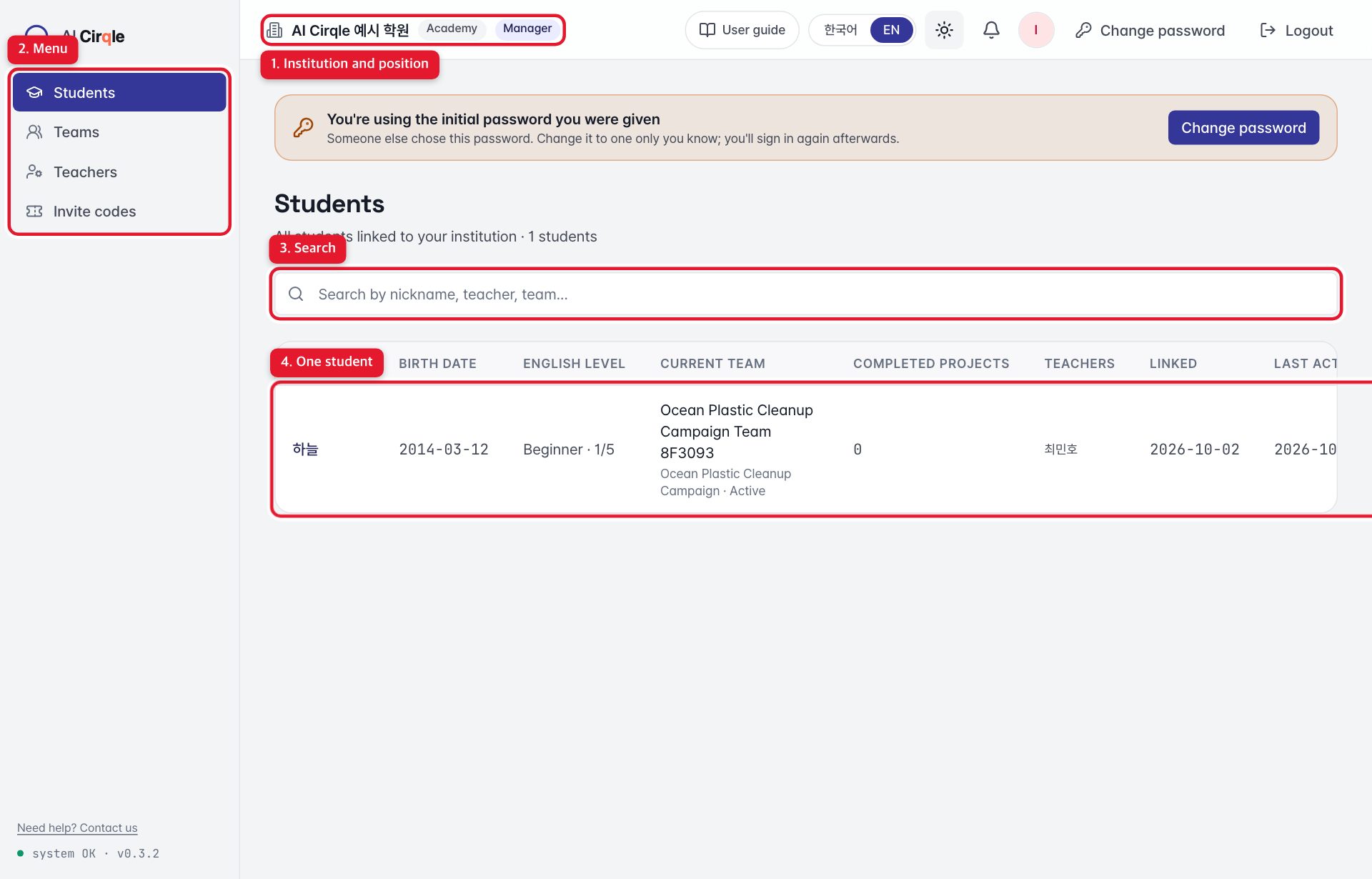
- 1. Your institution and your position.
- 2. Menu: Students and Teams, plus Teachers and Invite codes for managers.
- 3. Search by nickname, teacher or team name.
- 4. One student. Open it for details.
Good to know
- Parents' names and contact details and peer-review scores are never shown to institutions.
Student details
The student's profile (interests, preferred roles, country), team history and number of activities in the last 14 days.
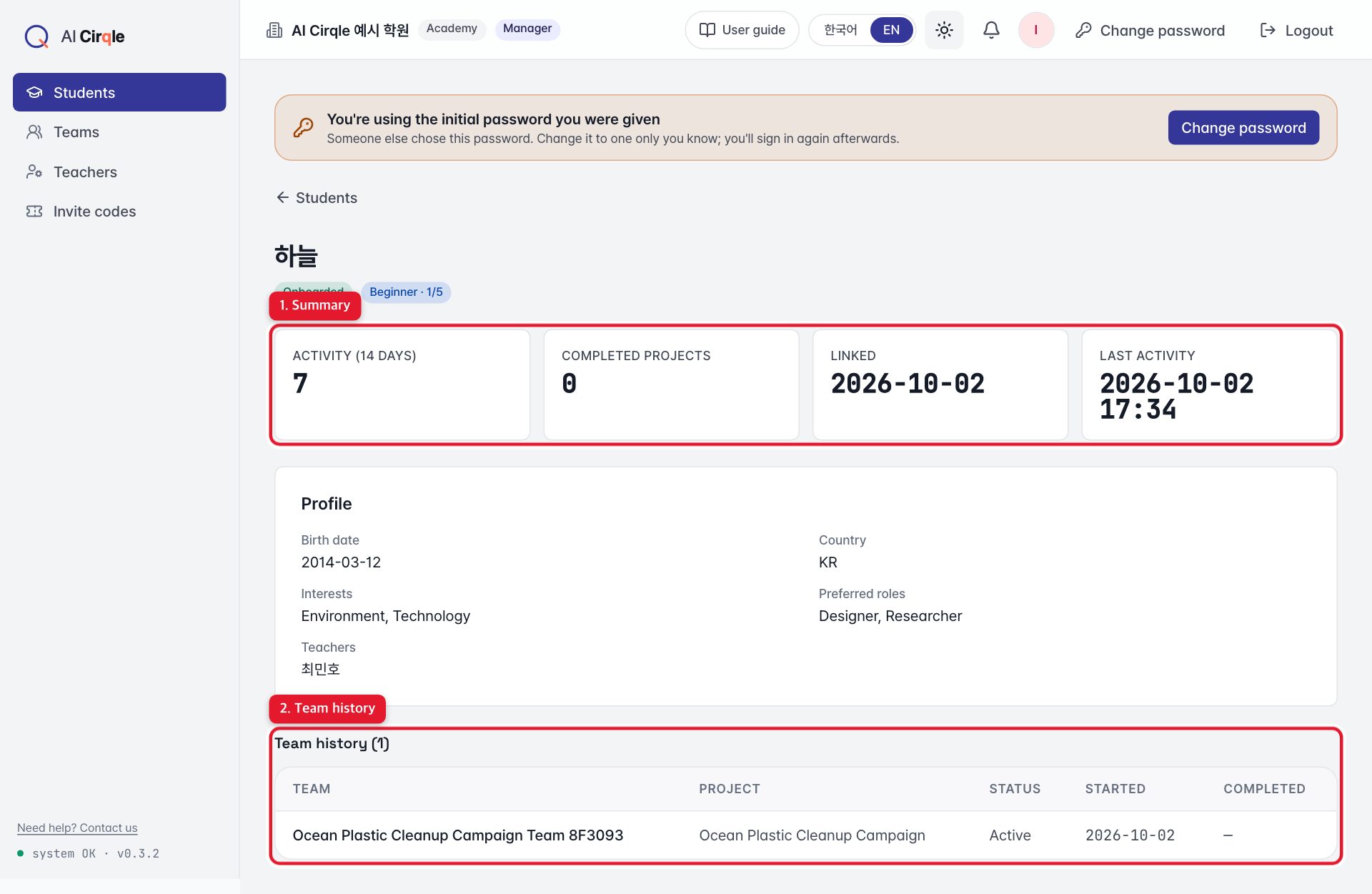
- 1. Summary: English level, teachers, linked date and latest activity.
- 2. Teams and projects joined, with their status.
Good to know
- Managers can unlink a student here. Linking again needs the parent to enter a code again.
Teams
Every team with at least one of your students. Teams can include students from elsewhere and AI teammates; those appear only as a head count.
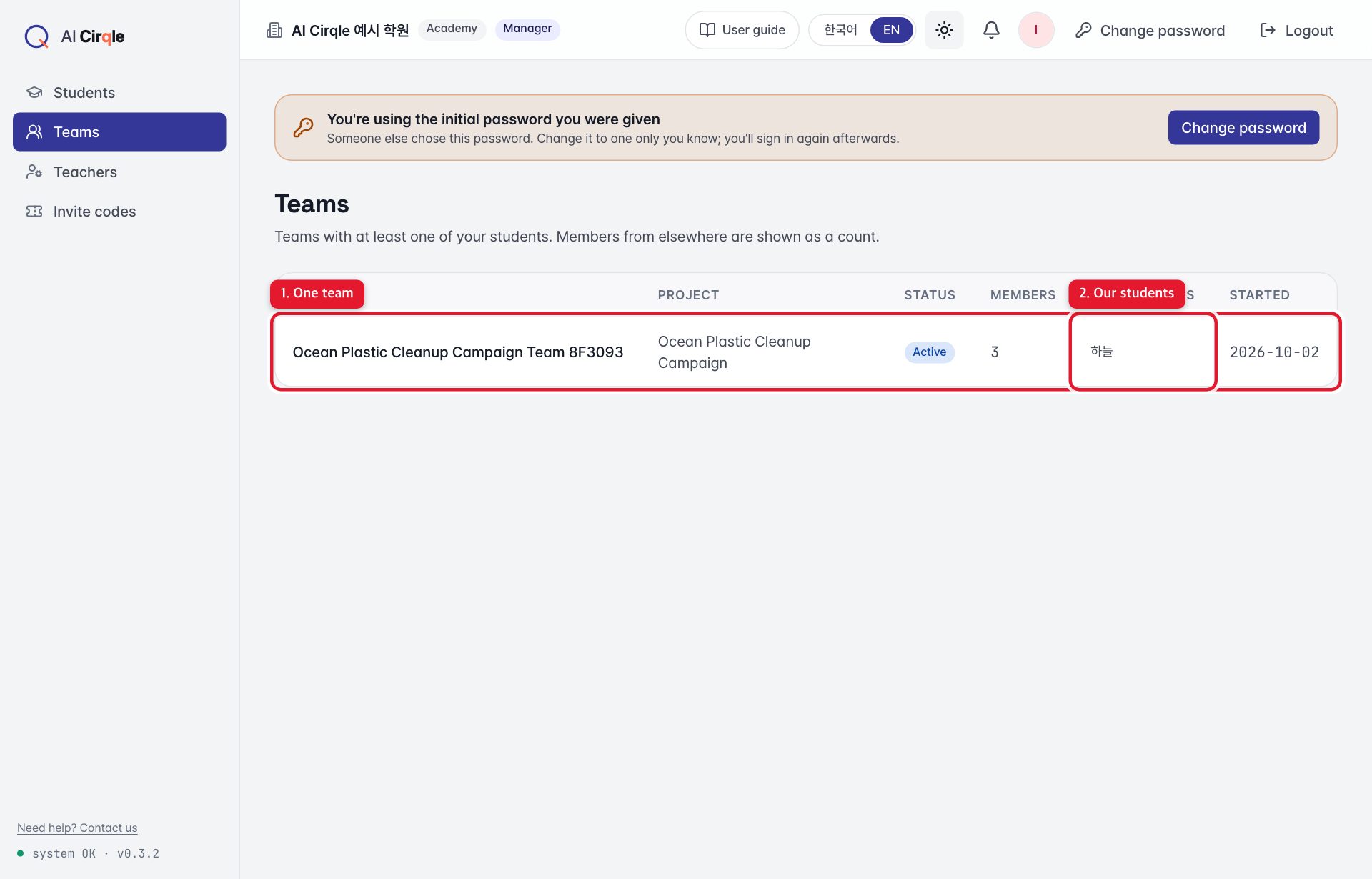
- 1. One team: project, status, total members and start date.
- 2. Your students on that team.
Manager tools
Teachers
Create teacher accounts and tick which students each teacher can see. Teachers only see their assigned students and those students' teams.
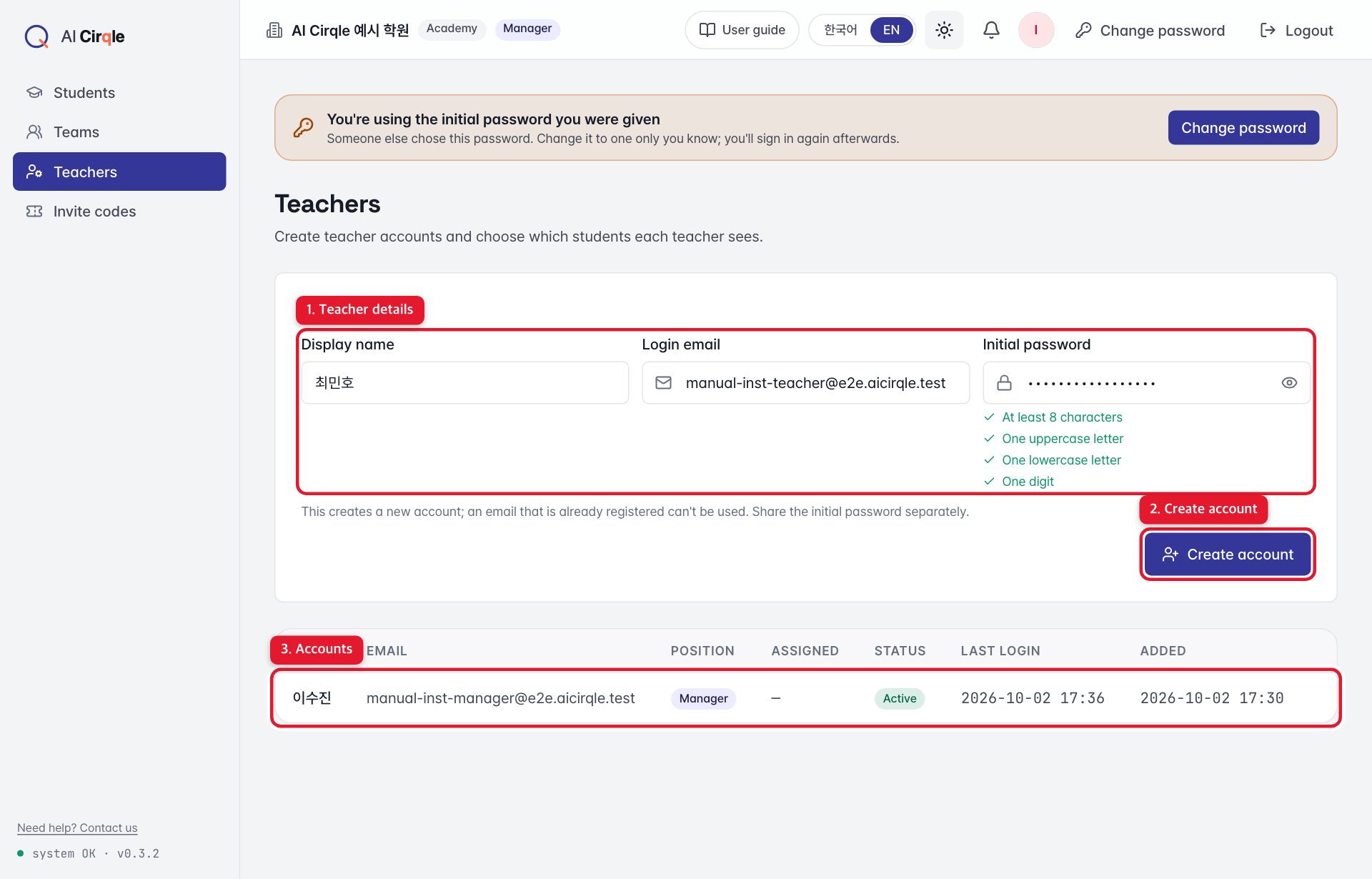
- 1. Enter the teacher's name, sign-in email and initial password. Hand the password over separately.
- 2. Creates the account.
- 3. Accounts so far. Use 'Assign students' to choose who they see; 'Remove' suspends the account.
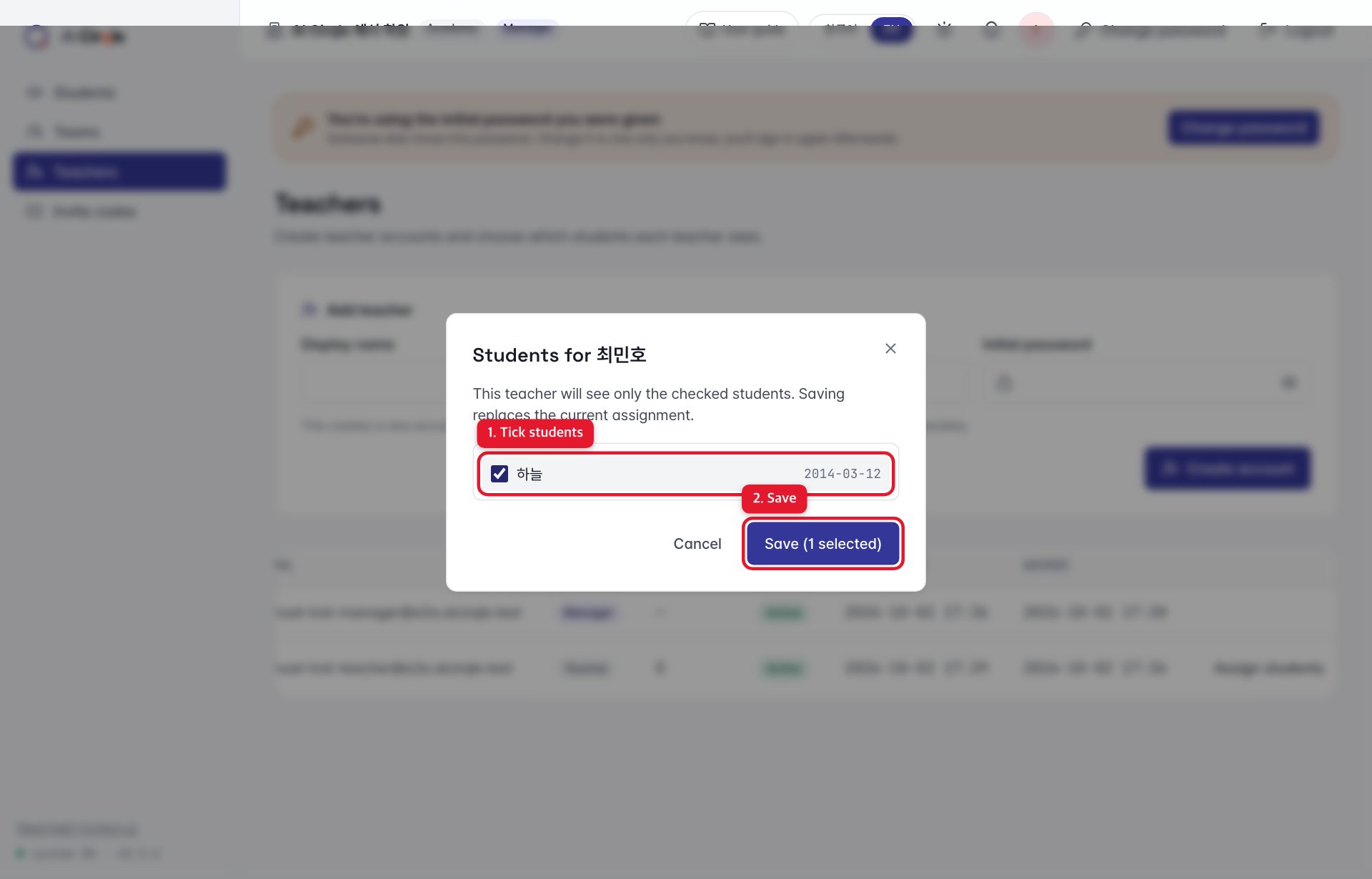
- 1. Tick the students this teacher should see.
- 2. Saving replaces the previous assignment with what's ticked.
Invite codes
Create codes to give to parents. Add a memo per class or term, and optionally an expiry or a maximum number of uses (one per child).
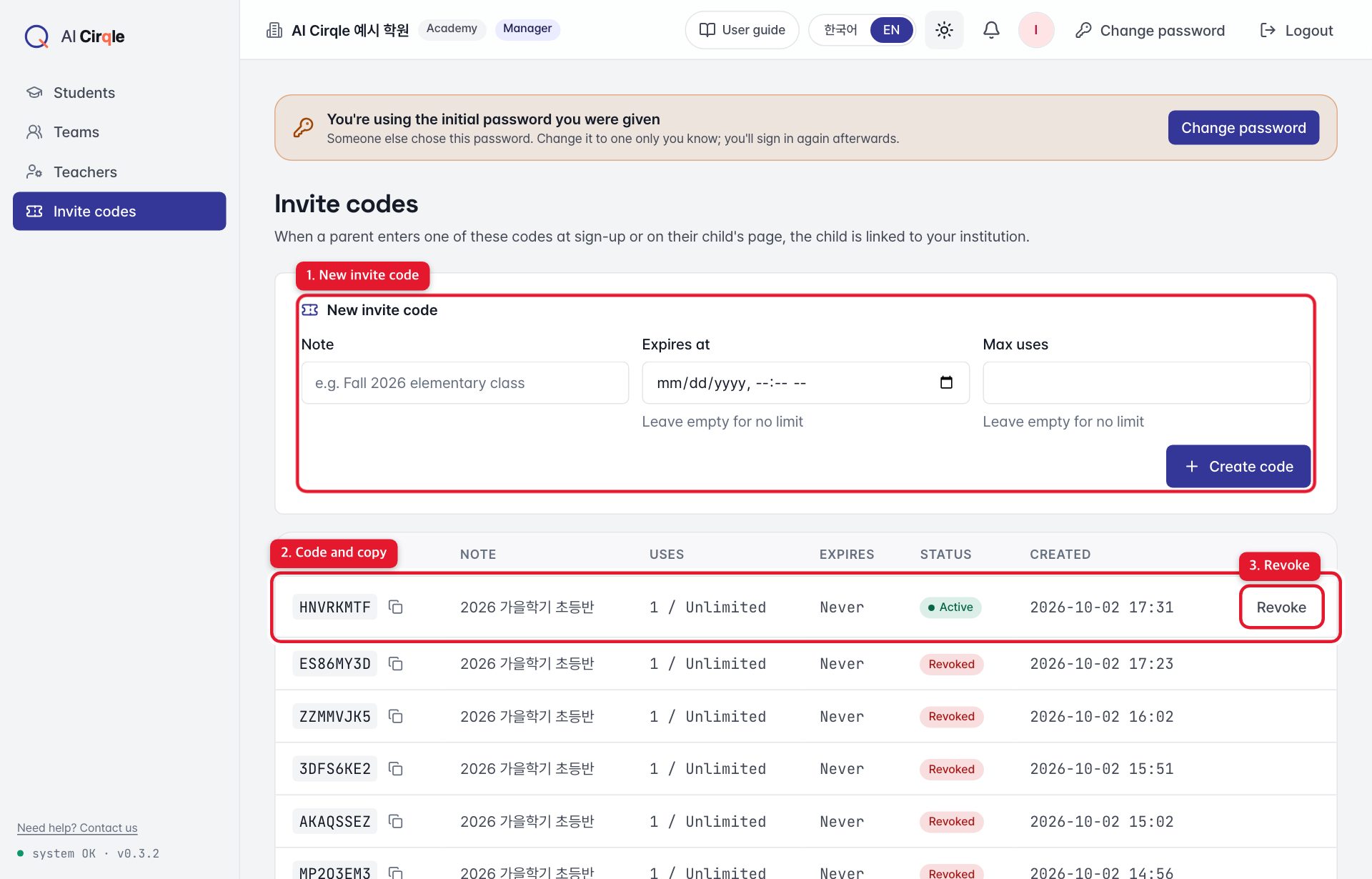
- 1. Set a memo, expiry and use limit, then create the code. Leave them empty for no limit.
- 2. The code and how often it's been used. Copy it into your note to parents.
- 3. Revoke codes you no longer need. Students already linked stay linked.
Good to know
- Codes are 8 capital letters and digits. Lowercase or hyphens typed by parents are accepted too.
Teacher view
What teachers see
Teachers have only the Students and Teams menus and see only the students their manager assigned. With no assignments, the list is empty.
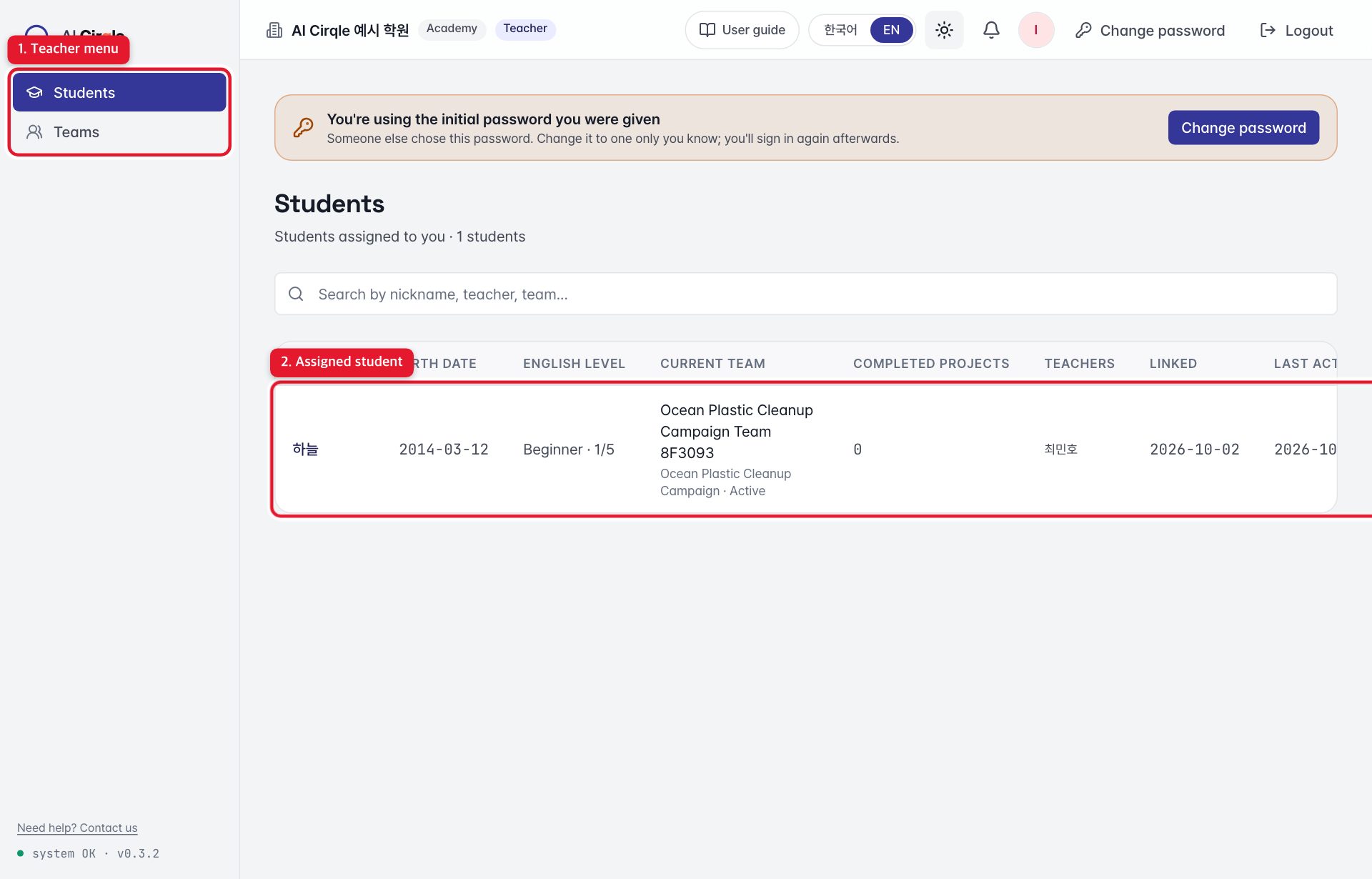
- 1. Teachers see only Students and Teams.
- 2. Students assigned to you.
Questions and answers at a glance
- Where do institution staff sign in?
- Sign in at admin.aicirqle.org with the account the AI Cirqle team (for managers) or your institution's manager (for teachers) created for you. Institution accounts can't be created from the sign-up page. See it with pictures
- How do our students get linked?
- The manager creates a code under Invite codes and gives it to parents. When a parent enters it on the sign-up page or the child's page and agrees to sharing, the child appears in your student list. Institutions don't register students themselves. See it with pictures
- Where do I see our students?
- Each linked student's English level, current team, completed projects, teachers and latest activity on one line. Managers see everyone; teachers see only their assigned students. See it with pictures
- How do I see one student's activity?
- The student's profile (interests, preferred roles, country), team history and number of activities in the last 14 days. See it with pictures
- Where do I see the teams our students are in?
- Every team with at least one of your students. Teams can include students from elsewhere and AI teammates; those appear only as a head count. See it with pictures
- How do I add teachers and assign students?
- Create teacher accounts and tick which students each teacher can see. Teachers only see their assigned students and those students' teams. See it with pictures
- How do I create an invite code for parents?
- Create codes to give to parents. Add a memo per class or term, and optionally an expiry or a maximum number of uses (one per child). See it with pictures
- What does a teacher see?
- Teachers have only the Students and Teams menus and see only the students their manager assigned. With no assignments, the list is empty. See it with pictures